Duomo
●홈 화면 런처 · 홈은 언제나 무료Home screen launcher · Home is always free

Android,
익숙하게.
Android.
Made Familiar.

새로운 기기. 익숙한 경험.
바형부터 폴더블까지.
A new device. A familiar experience.
From foldables to everyday phones.

Google Play에서 받을 수 있어요.
처음 7일은 모든 꾸미기가 무료예요.
Now on Google Play.
Every customization is free for your first 7 days.

Google Play 정식 출시Now on Google Play
광고 0개Zero ads설정할 때도, 검색할 때도Not in settings, not in search
계정 없이No account모든 설정은 기기 안에만Every setting stays on your phone
권한은 선택만Optional permissions only연락처 검색 · 알림 배지 · 두 번 탭 끄기Contact search · badges · double-tap to sleep
홈은 무료Home is free꾸미기는 7일 체험 뒤 평생권 한 번Customization: 7-day trial, then one lifetime pass

홈 화면Home screen

보다. 바로.광고 없이.See More.Wait Less. No ads. No interruptions.

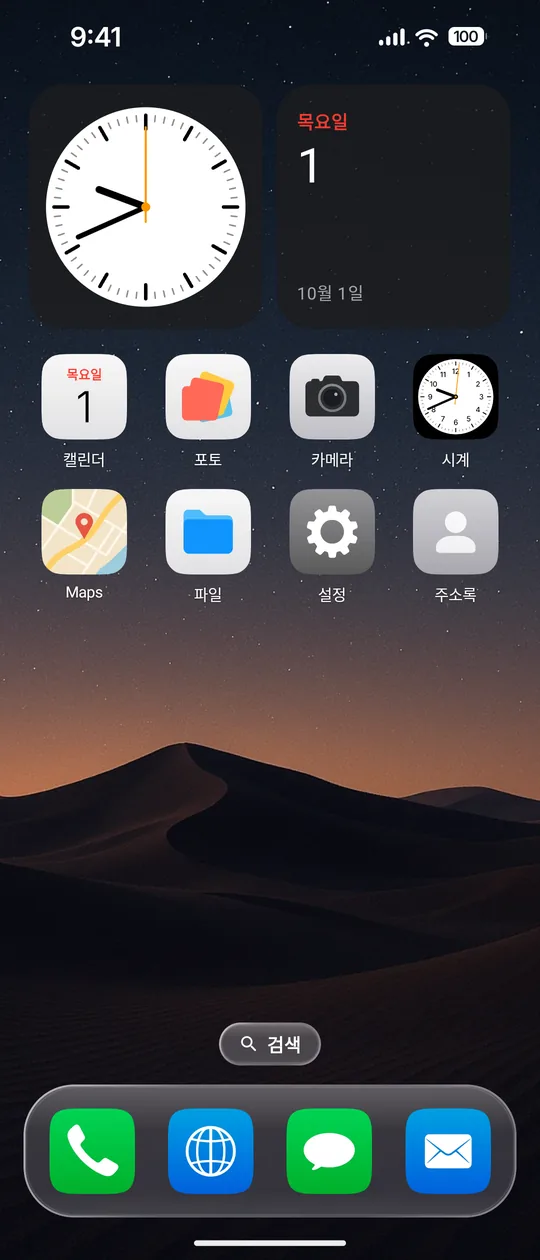
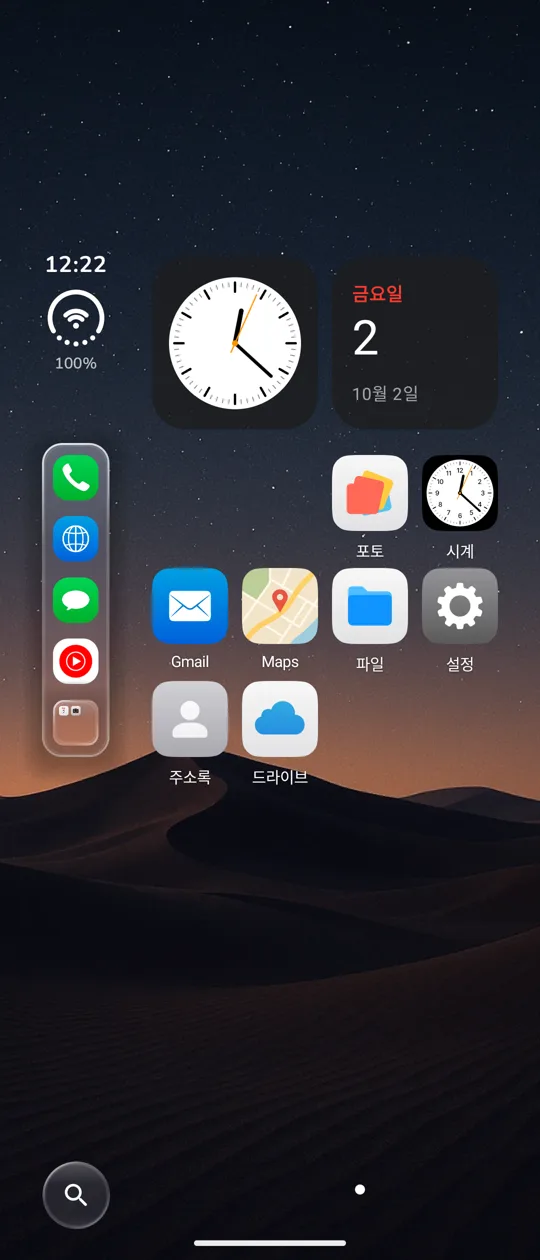
반투명 독과 폴더, 둥근 모서리로 맞춘 위젯, 두 글자면 찾는 검색. 홈은 홈 일만 합니다.A translucent dock and folders, widgets with matching rounded corners, and search that finds things in two letters. Home just does home.

Aura

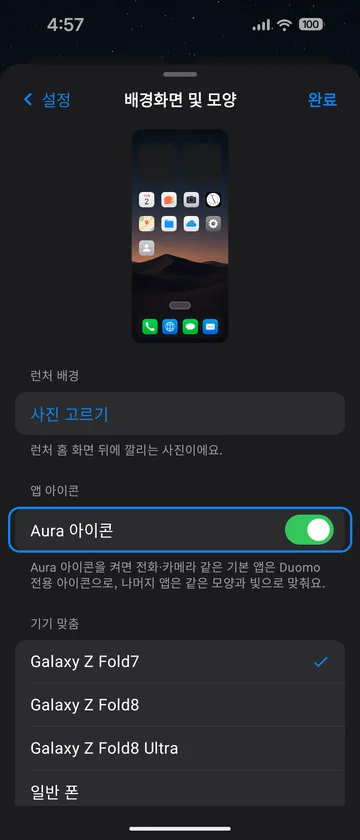
같은 결로.모든 아이콘을 하나처럼.One Visual Language.Every icon belongs together.

기본 앱은 Duomo가 직접 그린 Aura 아이콘으로, 나머지 앱도 같은 모양과 빛으로 맞춰요. 캘린더는 오늘 날짜를, 시계는 지금 시각을 보여 줘요.Core apps get Duomo-designed Aura icons, and every other app is matched to the same shape and light. The calendar shows today's date, and the clock shows the time.

기본Standard
Aura

모든 앱All Apps

비울수록 편하게.필요한 것만 앞에.Less on Screen.Keep your home clear and focused.

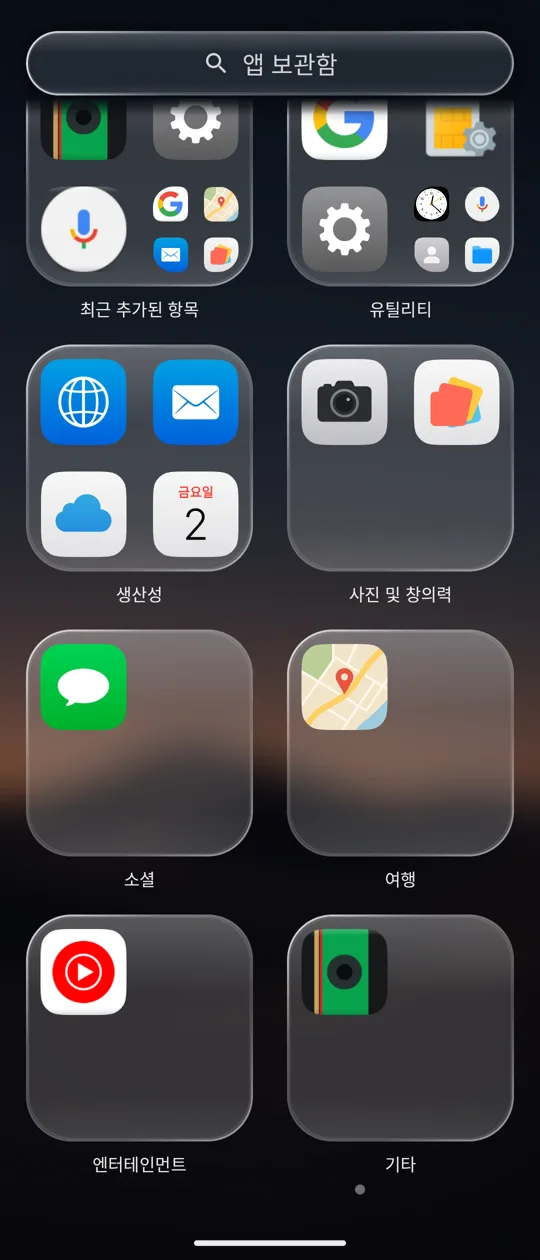
홈엔 자주 쓰는 앱만. 나머지는 '모든 앱'이 종류별로 정리하고, 그 안에서 바로 찾아요.Keep only what you use on Home. All Apps sorts everything else by category, with search built in.

바형부터 폴더블까지From foldables to everyday phones

커버는 커버대로.펼치면 펼친 대로.Folded or open.Each screen gets its own fit.

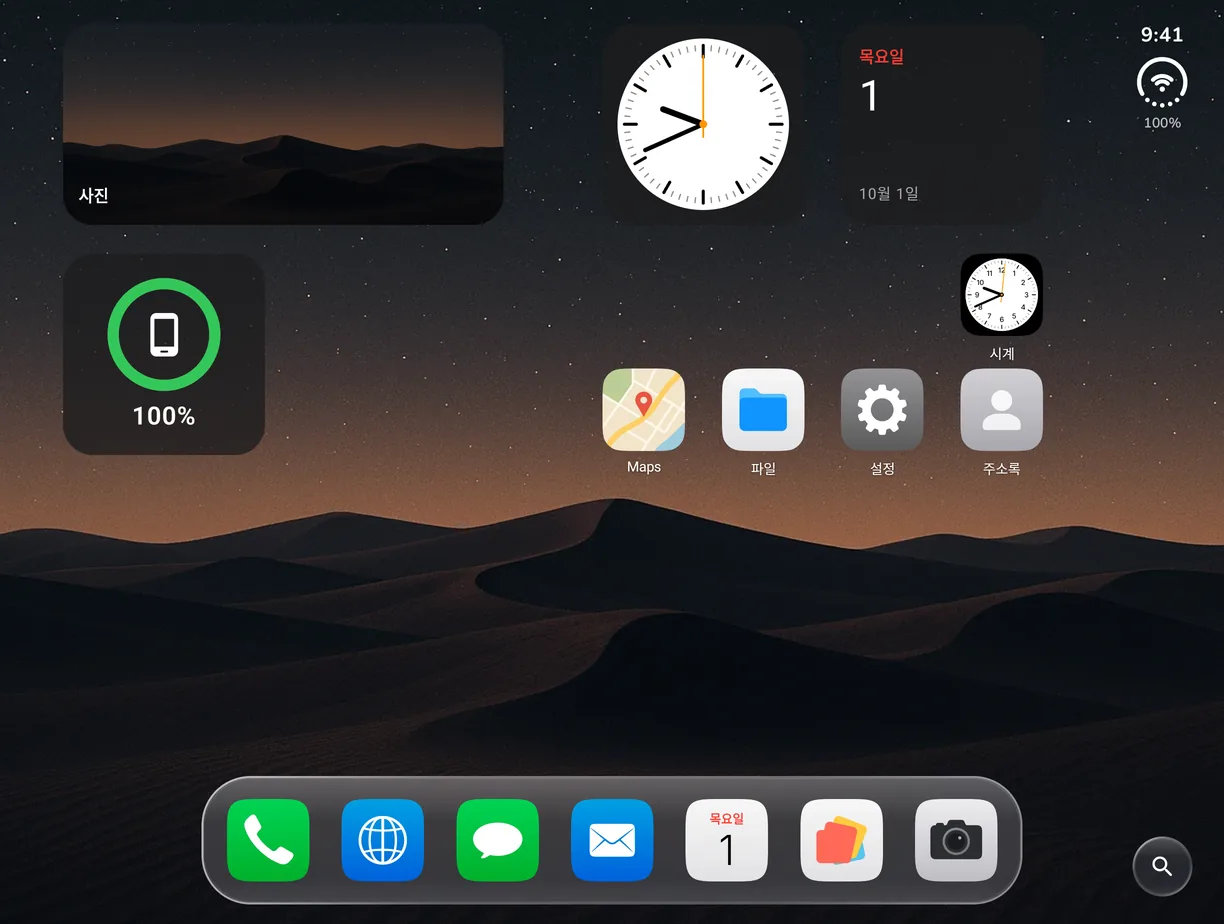
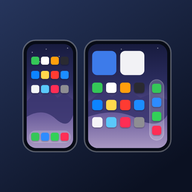
갤럭시 Z 폴드7·폴드8·폴드8 울트라는 커버와 펼친 화면을 기종별로 맞췄어요. 일반 폰도 화면 비율과 카메라 위치를 읽어 여백을 맞춰요.Galaxy Z Fold7, Fold8 and Fold8 Ultra get per-model layouts for the cover and the inner screen. On any other phone, margins follow your screen ratio and camera cutout.

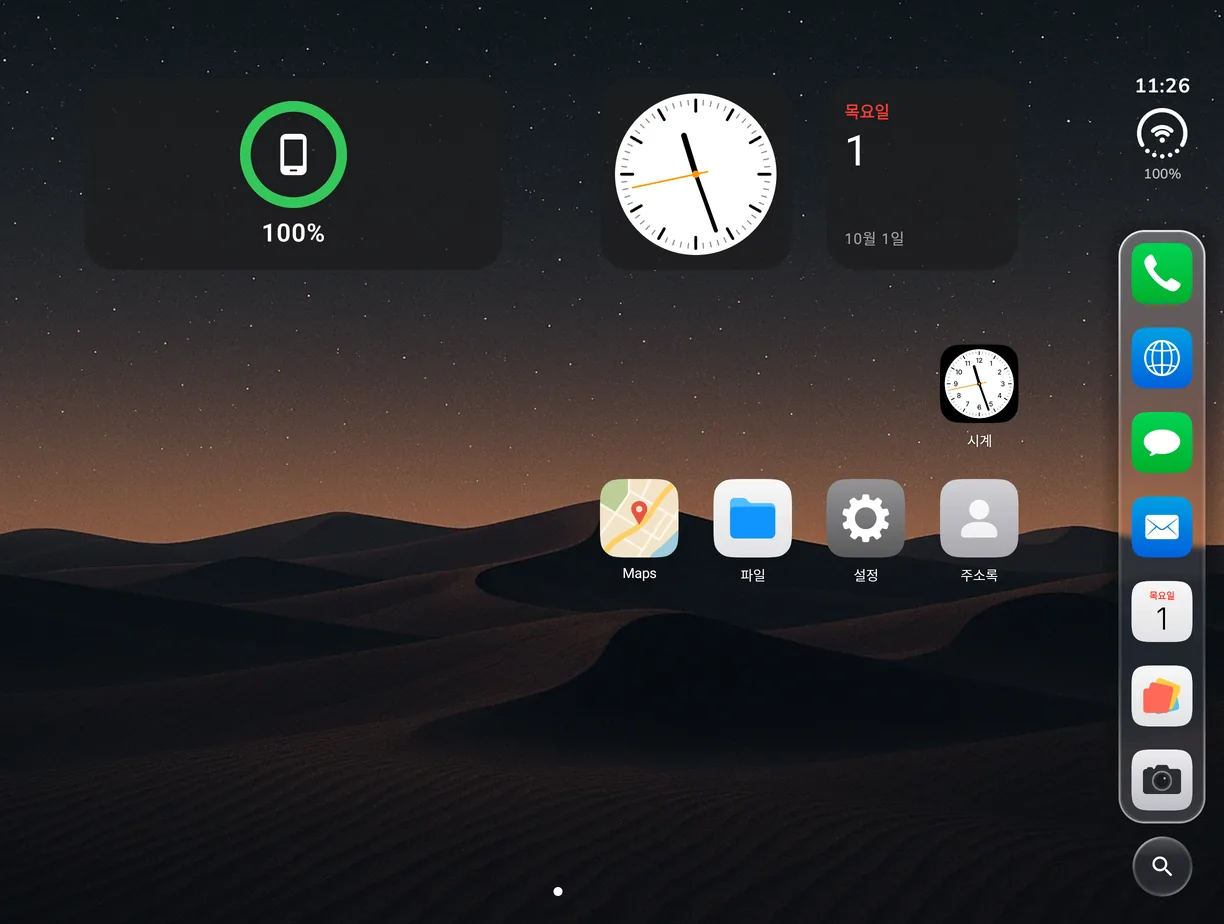
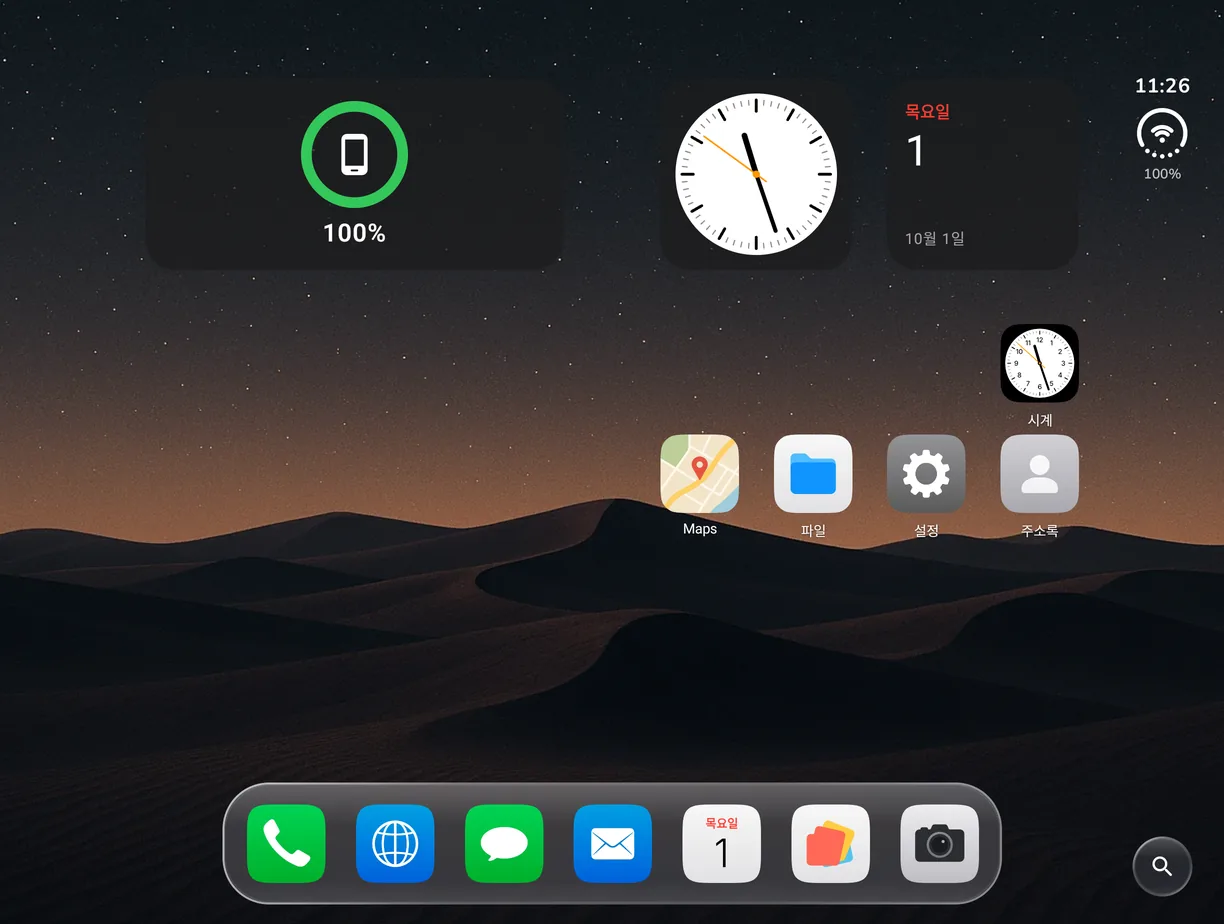
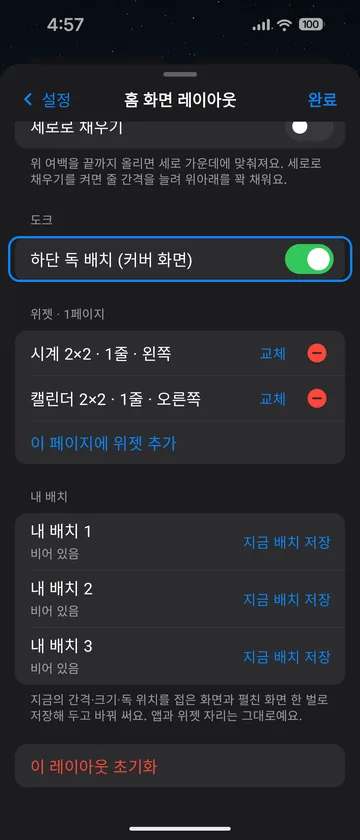
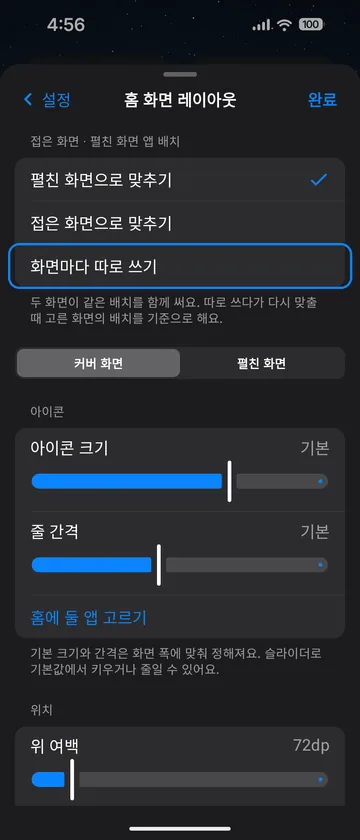
접은 화면과 펼친 화면의 앱 배치는 하나로 맞춰 쓰거나 화면마다 따로 쓸 수 있어요. 펼친 화면의 독은 오른쪽 세로형과 아래 가로형 중에 골라요.Share one app layout between the folded and unfolded screens, or keep a separate one for each. On the unfolded screen, put the dock on the side or along the bottom.

살짝 벌려 옆으로 눕히거나 반 접어 두면 시계·달력·사진이 뜨는 세워 두기 화면, 사진 여러 장으로 만드는 잠금화면 빌더, 홈 빈 곳을 두 번 탭해 화면 끄기까지 — 폴더블에서 아쉬웠던 것들을 넣었어요.Prop it slightly open on its side or half-fold it and a clock, calendar or photo stand screen appears. Build a lock screen from several photos, and double-tap an empty spot to turn the screen off — the little things foldables were missing.

백업 · 복원Backup · Restore

그대로.
다시 그대로.레이아웃 백업 및 복원.
Just as You Left It.Backup and restore instantly.

공들인 배치는 스스로 옮기지 않아요. 파일로 내보내 두면 새 폰에서도, 초기화한 뒤에도 미리 보고 되돌릴 수 있어요.Duomo never rearranges your layout on its own. Export it to a file and bring it back on a new phone or after a reset, with a preview first.

18초 영상18-second tour

내 폰답게.계정 없이. 클라우드 없이.Yours, by Design.No account. No cloud. No ad tracking.

모든 설정은 이 기기 안에만 저장돼요. 사진은 직접 고른 것만, 처리도 기기 안에서.Every setting is stored on your device. Photos are only the ones you pick, processed on the device.

함께 만든 앱Made together

테스터와 함께
다듬었어요.
Shaped with
our testers.

Duomo는 클로즈드 테스트에서 실제 사용자 의견을 받아 다듬은 뒤 정식으로 출시했어요.

지금도 보내 주시는 의견으로 계속 바뀌고 있어요.

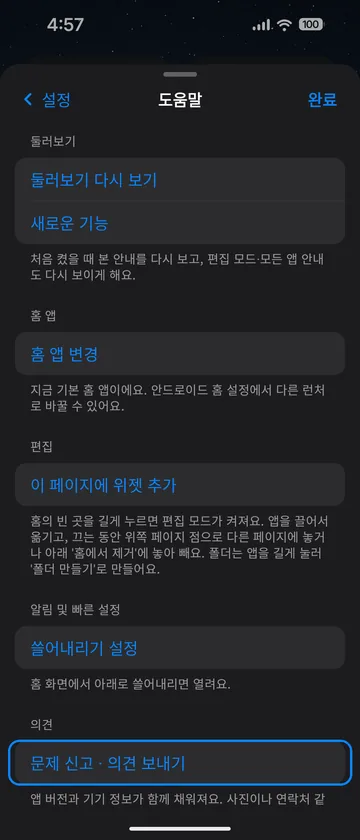
불편한 점이나 바라는 점은 앱의 설정 › 도움말 › "문제 신고 · 의견 보내기"로 알려 주세요.

Duomo was shaped by real users in Google Play Closed Testing before its public release.

It keeps changing with the feedback you send.

Found something off or have an idea? Tell us via Settings › Help › "Report a bug · Send feedback" in the app.

개인 개발자가 직접 만들고 운영합니다.Built and maintained by an independent developer.
Duomo ProDuomo Pro

홈은 무료.
꾸미기는 평생권 하나.
Home is free.
One pass for the rest.

홈 화면·모든 앱·위젯·폴더·검색·백업은 언제나 무료예요. 배경·아이콘·크기와 간격·잠금화면 빌더·세워 두기·모양 프리셋 같은 꾸미기는 Duomo Pro예요.Home, All Apps, widgets, folders, search and backup are always free. Customization such as backgrounds, icons, size and spacing, the lock screen builder, Stand mode and look presets is Duomo Pro.

7일 무료 체험7-day free trial설치하면 7일 동안 모든 꾸미기를 써 봐요. 자동 결제는 없어요.Try every customization for 7 days. Nothing is charged automatically.
평생권 한 번One lifetime pass체험 7일 안에는 ₩6,900, 그 뒤엔 ₩12,800. 구독이 아니에요.Less during the 7-day trial, more after it. Never a subscription.
만든 모습은 그대로Your look stays체험이 끝나도 꾸민 모습은 남아요. 다시 바꿀 때만 평생권이 필요해요.After the trial your look stays as it is. You only need the pass to change it again.

업데이트 내역What's new

써 주신 의견으로
바뀌고 있어요.
Changing with
your feedback.

다음 알람 위젯 · 빈 페이지Next alarm widget, blank pages26년 11월 5일Nov 5, 2026

1.0.1102026년 11월 5일November 5, 2026정식 출시Released

  • 다음 알람 위젯. 누르면 알람 화면이 열려요.
  • 빈 페이지. 페이지 편집에서 만든 빈 페이지가 앱이 없어도 그대로 남아요.
  • 아이콘 팩 그림 크기를 고르게 맞췄어요.
  • 세워 두기가 펼친 상태에서 켜지지 않던 문제를 고쳤어요.
  • 페이지를 지운 뒤 되돌리면 위젯도 함께 돌아와요.
  • Next alarm widget. Tap it to open your alarms.
  • Blank pages. Blank pages you make in Edit Pages now stay, even with no apps on them.
  • Icon pack icons now come out at an even size.
  • Fixed Stand mode not starting while unfolded.
  • Undo after deleting a page now brings its widgets back too.
Duomo Pro · 세워 두기 · 잠금화면 빌더Duomo Pro, Stand mode, lock screen builder26년 10월 30일Oct 30, 2026

1.0.1072026년 10월 30일October 30, 2026정식 출시Released

  • Duomo Pro. 홈은 언제나 무료, 꾸미기는 7일 무료 체험 뒤 평생권 한 번(구독 아님).
  • 세워 두기 화면. 반쯤 접거나 눕혀 두면 시계·달력·사진·음악을 크게 보여 줘요.
  • 잠금화면 빌더. 사진마다 시계 위치·글꼴과 심도 효과를 정해 잠금화면을 만들어요.
  • 모양 프리셋. 배경·아이콘·독 배치를 저장해 두고 한 번에, 또는 시간에 맞춰 바꿔요.
  • 파일 백업. 배경·아이콘·프리셋·잠금화면 사진과 메모까지 파일 하나에 담아요.
  • 새 앱 아이콘과 함께 홈·모든 앱·폴더를 다듬고, 홈을 띄워 둘 때 배터리를 덜 써요.
  • Duomo Pro. Home is always free; customization is a 7-day free trial, then a one-time lifetime pass (not a subscription).
  • Stand mode. Half-fold or lay your phone down to show a big clock, calendar, photos and music.
  • Lock screen builder. Set the clock position, font and depth effect for each photo.
  • Look presets. Save your background, icons and dock layout and switch them in one tap or on a schedule.
  • File backup. One file now holds your background, icons, presets, lock screen photos and memos.
  • A new app icon, plus polish across Home, All Apps and folders, and less battery use while Home is on screen.
보관함 길게 누르기Long-press in the App Library26년 10월 17일Oct 17, 2026

1.0.412026년 10월 17일October 17, 2026테스터에게 배포됨Rolled out to testers

  • 보관함 길게 누르기. 스크롤한 뒤 앱을 길게 누르면 다른 앱이 선택되던 것, 분류 묶음을 펼친 채 길게 누르면 뒤에 있던 앱이 잡히던 것을 고쳤어요. (카페 제보)
  • Long-press in the App Library. After scrolling, long-pressing no longer selects a different app, and an open category no longer picks an app behind it. (Community report)
알림창 저절로 열림 · 폴더 옮기기 · 함께 보기Shade opening by itself, folder moves, combined panel26년 10월 17일Oct 17, 2026

1.0.402026년 10월 17일October 17, 2026테스터에게 배포됨Rolled out to testers

  • 알림창. 앱에서 홈으로 돌아올 때 알림창이 저절로 열리던 것을 고쳤어요(1.0.39에서 생긴 문제).
  • 폴더 옮기기. 폴더를 빈칸으로 끌어 옮기면 원래 자리로 돌아가던 것을 고쳤어요.
  • 함께 보기. 삼성 알림 창을 '함께 보기'로 쓰면 어디서 쓸어내려도 메시지가 먼저 보여요. (카페 제보)
  • Notification shade. No longer opens by itself when returning home from an app (introduced in 1.0.39).
  • Moving folders. Folders no longer snap back when dragged into an empty cell.
  • Combined panel. With Samsung's combined notification panel, swiping down anywhere shows notifications first. (Community report)
접은 화면 알림창 한 번에One-swipe shade on the cover screen26년 10월 17일Oct 17, 2026

1.0.392026년 10월 17일October 17, 2026테스터에게 배포됨Rolled out to testers

  • 알림창. 접은 화면에서도 맨 위 가장자리를 한 번 내리면 바로 열려요. 카메라 구멍 띠에서 시작하면 두 번 내려야 하던 것을 고쳤어요. (카페 제보)
  • Notification shade. On the cover screen too, one swipe down from the very top edge opens it; starting on the camera-hole strip used to take two. (Community report)
알림창 한 번에 · Aura 아이콘 다듬기One-swipe shade, Aura icon polish26년 10월 16일Oct 16, 2026

1.0.382026년 10월 16일October 16, 2026테스터에게 배포됨Rolled out to testers

  • 알림창. 상태바를 숨긴 화면에서 맨 위 가장자리를 한 번 내리면 바로 열려요. 두 번 내려야 하던 것을 고쳤어요. (카페 제보)
  • Aura 밝은 로고. 흰색·연한 로고(새마을금고 등)는 어두운 판에 그려 잘 보여요. (카페 제보)
  • Aura 흰 판. YouTube·YT Music처럼 흰 판 아이콘 안에 보이던 테두리 띠를 없애고 아래 그늘을 약하게 했어요.
  • Notification shade. With the status bar hidden, one swipe down from the top edge opens it; it used to take two. (Community report)
  • Aura light logos. White or light logos (like MG Saemaul Geumgo) get a dark plate so they stay visible. (Community report)
  • Aura white plates. Removed the band inside white tray icons like YouTube and YT Music, and lightened their bottom shade.
알림창 내릴 때 흔들림 · 펼친 뒤 아이콘 움직임Shade shift, icons after unfolding26년 10월 15일Oct 15, 2026

1.0.372026년 10월 15일October 15, 2026테스터에게 배포됨Rolled out to testers

  • 알림창. 펼친 화면에서 알림창을 내리면 화면 전체가 살짝 내려갔다 올라오던 것을 고쳤어요. (카페 제보)
  • 펼친 뒤 아이콘. 접은 채 앱을 띄우고 펼쳐서 닫으면 아이콘이 재배치되듯 움직이던 것을 고쳤어요.
  • 1.0.36의 끊김·보관함·사진 위젯·메모 수정을 함께 담았어요.
  • Notification shade. The inner screen no longer shifts down slightly when you pull down the shade. (Community report)
  • Icons after unfolding. Icons no longer slide into place after opening an app folded and closing it unfolded.
  • Includes the 1.0.36 stutter, library, photo widget and memo fixes.
끊김 수정 · 보관함 · 사진 위젯Stutter fixes, library, photo widget26년 10월 15일Oct 15, 2026

1.0.362026년 10월 15일October 15, 20261.0.37에 합쳐짐Merged into 1.0.37

  • 끊김. 편집 모드·페이지 넘기기·검색 닫을 때 끊기던 것을 고쳤어요. 유리 반사는 독만 실시간으로 비추고, Aura 판은 아이콘마다 따로 준비돼요. (실기 측정)
  • 보관함. 검색을 닫고 돌아오면 배경만 보이던 것을 고쳤어요.
  • 사진 위젯. '홈에 올 때마다'가 페이지를 넘길 때마다 바뀌던 것을 제대로 고쳤어요.
  • 메모 위젯. 배경 '없음'이 적용돼요.
  • Stutter. Fixed stutter in edit mode, when swiping pages and when closing search. Only the dock reflects live content; Aura plates are prepared per icon. (Measured on device)
  • Library. No longer shows only the wallpaper after closing search.
  • Photo widget. Properly fixed changing on every page swipe when set to change on each visit.
  • Memo widget. Honors the 'None' background.
메모·체크리스트 위젯 · Aura 아이콘 크기 · 부드러움Memo & checklist widgets, Aura icon size, smoothness26년 10월 15일Oct 15, 2026

1.0.352026년 10월 15일October 15, 2026테스터에게 배포됨Rolled out to testers

  • 메모·체크리스트 위젯. 홈에 메모와 할 일 목록을 둘 수 있어요. 동그라미를 눌러 바로 체크하고, 위젯을 누르면 편집해요.
  • Aura 아이콘 크기. 판이 있는 아이콘을 더 이상 키우지 않아요. 유튜브·토스 등이 크게 보이던 것을 고쳤어요. (카페 제보)
  • 원래 아이콘으로. 앱을 길게 눌러 고르면 그 앱만 Aura 없이 보여요. (카페 요청)
  • 뒤로·홈 버튼. 누르면 첫 페이지로 돌아가요. (카페 제보)
  • 사진 위젯. '홈에 올 때마다'로 두면 페이지를 넘길 때마다 사진이 바뀌고 펼친 화면이 버벅이던 것을 고쳤어요.
  • 부드러움. 펼친 화면 스크롤, 배경 변경 뒤·편집 모드 버벅임, 폴더 여닫기 프레임 튐, 모든 앱에서 돌아올 때 아래 독, 바깥 화면 옆 독 사라짐을 고쳤어요. (카페 제보)
  • Memo & checklist widgets. Keep a note or a to-do list on your home screen. Tap a circle to check an item; tap the widget to edit.
  • Aura icon size. Tray-style icons are no longer enlarged, so YouTube, Toss and others no longer look too big. (Community report)
  • Use original icon. Long-press an app to show just that app without Aura. (Community request)
  • Back & Home. Both return to the first page. (Community report)
  • Photo widget. Set to change on every visit, it no longer switches photos on every page swipe, which made the inner screen stutter.
  • Smoothness. Fixed inner-screen scroll stutter, stutter after changing the background or in edit mode, folder frame skips, the bottom dock when returning from All Apps, and the cover side dock vanishing. (Community report)
펼친 화면 넘기기 · Aura 아이콘 모서리Inner-screen swipes, Aura icon corners26년 10월 15일Oct 15, 2026

1.0.342026년 10월 15일October 15, 2026테스터에게 배포됨Rolled out to testers

  • 펼친 화면 넘기기. 모든 앱이 함께 움직여요. 새 페이지 앱이 늦게 오다 끝에 따라붙던 것을 고쳤어요. (카페 제보)
  • Aura 아이콘. 네이버 카페처럼 판이 있는 아이콘 모서리에 테두리가 겹쳐 보이던 것을 고쳤어요. (카페 제보)
  • Inner-screen swipes. All apps move together; new apps no longer lag and snap in at the end. (Community report)
  • Aura icons. No more outlines overlapping the corners of tray-style icons like Naver Cafe. (Community report)
가장자리로 페이지 옮기기 · 폴더 · 모서리 다듬기Edge page moves, folders, corner polish26년 10월 15일Oct 15, 2026

1.0.332026년 10월 15일October 15, 2026테스터에게 배포됨Rolled out to testers

  • 가장자리로 페이지 옮기기. 앱을 끌어 화면 왼쪽·오른쪽 끝(가운데 70% 띠)에 잠깐 멈추면 옆 페이지로 넘어가요. (카페 요청)
  • 폴더. 열린 뒤 살짝 다시 자리잡던 것을 고쳤어요. (카페 제보)
  • 모든 앱. 묶음 판 모서리를 아이콘 곡률에 맞췄어요. (카페 제보)
  • 펼친 화면. 페이지를 넘긴 뒤 왼쪽 끝에 위젯 일부가 남았다 사라지던 것을 고쳤어요.
  • Move pages from the edge. Hold a dragged app at the left or right edge (middle 70% band) to move to the next page. (Request)
  • Folders. No longer settle twice when opening. (Community report)
  • All Apps. Group corners follow the icon curve. (Community report)
  • Inner screen. No more widget sliver lingering at the left edge after a page swipe.
처음 시작 두 단계 · 홈 꾸미기 · 넘기기 다듬기Two-step setup, Customize Home, smoother swipes26년 10월 14일Oct 14, 2026

1.0.322026년 10월 14일October 14, 2026테스터에게 배포됨Rolled out to testers

  • 처음 시작 두 단계. 접은·펼친 화면 미리보기 → 기본 홈으로 쓰기(무엇이 바뀌고 어떻게 되돌리는지 미리 알려 줘요) → 바로 홈.
  • 홈 꾸미기. 배경·아이콘·배치는 홈 위 '꾸미기' 카드나 설정 › 도움말 › 홈 꾸미기에서. 실제 홈을 보며 바꿔요. 휴대폰 라이트·다크를 따르고, 펼친 화면에선 한쪽 절반에만 떠요.
  • 모든 앱 흐림. 넘긴 만큼 서서히 흐려져요. (카페 제보)
  • 넘기기. 천천히 넘기다 놓을 때 살짝 뒤로 갔다 가던 것을 고쳤어요. (카페 제보)
  • 편집. 맨 위·맨 아래 줄로 옮길 때 홈이 밀리던 것, 설정을 빠르게 내리면 창이 닫히던 것을 고쳤어요. 페이지 순서는 편집 모드에서 아래 페이지 점을 눌러 바꿔요. (카페 제보)
  • Two-step setup. Preview the cover and inner screens → use Duomo as Home (we explain what changes and how to switch back) → straight to Home.
  • Customize Home. Wallpaper, icons and layout from the card on Home or Settings › Help › Customize Home, while you look at the real Home. Follows your phone's light or dark mode and opens on one half of the inner screen.
  • All Apps blur. Blurs gradually as you swipe. (Community report)
  • Swiping. No more slight backward bounce when releasing a slow swipe. (Community report)
  • Editing. Moving items to the top or bottom row no longer shifts Home, and Settings no longer closes on a fast scroll. Reorder pages by tapping the page dots in edit mode. (Community report)
배터리 · Aura 아이콘 · 야간 시간Battery, Aura icons, night hours26년 10월 14일Oct 14, 2026

1.0.312026년 10월 14일October 14, 2026테스터에게 배포됨Rolled out to testers

  • 배터리. 휴대폰을 기울일 때나 홈을 가만히 둘 때 화면을 훨씬 덜 다시 그려요. 폴드8에서 버벅이던 것도 줄었어요. (카페 제보)
  • 기울이면 배경 움직이기 끄기. 설정 › 배경화면 및 모양 › 움직임에서 끌 수 있어요. 끄면 기울기 센서를 쓰지 않아요. (카페 요청)
  • Aura 아이콘. 삼성 판에 들어 있던 아이콘(인스타그램·토스 등)이 판을 꽉 채우고 밝게 보여요. 배경 없는 로고는 흰 판에 넣고, 아이콘도 더 선명해졌어요. (카페 제보)
  • 모든 앱 가운데 정렬. 펼친 화면에서 한쪽으로 쏠리던 것을 고쳤어요. (카페 제보)
  • 세워 두기 야간 시간. 설정 › 세워 두기 화면 › 화면에서 30분 단위로 고를 수 있어요. 세워 둔 채로 야간이 되면 바로 어두워져요.
  • Battery. Home redraws far less while you tilt the phone or leave it idle, and stutter on the Fold8 is reduced. (Community report)
  • Turn off background motion. Settings › Wallpaper & Appearance › Motion. When off, the motion sensor isn't used. (Request)
  • Aura icons. Icons in Samsung's tray now fill the plate and look brighter, logos without a background sit on a white plate, and icons are sharper. (Community report)
  • All Apps centered. No longer leans to one side on the inner screen. (Community report)
  • Stand screen night hours. Choose them in 30-minute steps under Settings › Stand screen › Screen. It dims as soon as night begins.
Aura 아이콘 판 · 페이지 점 숨기기Aura icon plates, hide page dots26년 10월 13일Oct 13, 2026

1.0.302026년 10월 13일October 13, 2026테스터에게 배포됨Rolled out to testers

  • Aura 아이콘에서 배경 없는 아이콘. 쿠팡처럼 모양만 있는 아이콘이 투명한 사각으로 보이던 것을 고쳤어요. 이제 밝은 판 위에 맞춰 들어가요. (카페 제보)
  • 페이지 점 숨기기. 설정 › 홈 화면 레이아웃 › 페이지 › '페이지 점 보이기'를 끄면 홈 아래 점이 사라져요. 편집 모드에서는 보여요. (카페 요청)
  • 접은 화면 1페이지(왼쪽 판). 앱이나 검색을 다녀오면 보던 페이지로 돌아와요(늘 2페이지로 열리던 것). (카페 제보)
  • 잠금화면 빌더 시계. 화면을 켤 때 시계가 잠깐 예전 시각으로 남던 것을 고쳤어요. (카페 제보)
  • 세워 두기 화면은 Pro 기능이 돼요. 무료 테스트 기간에는 지금처럼 모두 쓸 수 있어요.
  • Icons without a background in Aura. Shape-only icons no longer show as a see-through square; they now sit on a light plate. (Community report)
  • Hide page dots. Turn off Settings › Home Screen layout › Pages › 'Show page dots' to hide the dots at the bottom of Home. They still show in edit mode. (Request)
  • Cover page 1 (left panel). Coming back from an app or search returns to the page you were on. (Community report)
  • Lock screen builder clock. It no longer briefly shows the old time when the screen turns on. (Community report)
  • The stand screen is becoming a Pro feature. During the free testing period everyone can keep using it.
홈 배열 고르기 · 새 앱은 홈에 · 배지 정리Choose your Home grid, new apps on Home, badge fixes26년 10월 12일Oct 12, 2026

1.0.292026년 10월 12일October 12, 2026테스터에게 배포됨Rolled out to testers

  • 홈 배열을 고를 수 있어요. 열 4·5 × 앱 줄 4·5, 기본은 지금과 같은 4×4예요. 편집 모드 조절 막대 › '배열' 또는 설정 › 홈 화면 레이아웃 › 배열. 늘리면 앱·위젯은 제자리에 두고 빈칸만 생기고, 줄이면 칸 밖 앱만 옮긴 뒤 바로 되돌릴 수 있어요. (카페 요청)
  • '홈 아래 한 줄 더(베타)'는 앱 줄 5로 바뀌었어요. 켜 두셨다면 그 줄의 앱도 그대로 옮겨지고, 이제 그 줄에도 위젯을 놓을 수 있어요.
  • 새로 설치한 앱이 홈에도 놓여요. 마지막 페이지의 빈칸에 들어가요. 설정 › 홈 화면 레이아웃 › '새로 설치한 앱'에서 '모든 앱에만'으로 바꿀 수 있어요. (요청)
  • 남던 알림 배지. 알림을 눌러 앱을 열거나 앱 안에서 읽으면 앱이 보낸 안 읽은 수도 지워져요. 남은 숫자는 설정 › 제스처 및 검색 › 알림 배지에서 한 번에 지울 수 있어요. (카페 제보)
  • 잠금화면 빌더를 설정 첫 화면 '잠금화면'으로 옮겼어요.
  • 화면이 커지는 설정에서 잘리던 앱 줄. 폴드8 '표준 보기'처럼 글자·아이콘이 커지면 마지막 앱 줄이나 앱 이름이 잘렸어요. 공간이 모자라면 간격과 아이콘을 조금 줄여 맞춰요. (카페 제보)
  • 배경을 지운 위젯의 글자. 위젯 배경을 '없음'이나 'Duomo 유리'로 하면 위젯을 어두운 모드로 그려 글자가 밝게 보여요. 다크 모드를 지원하는 위젯에 적용돼요. (카페 제보)
  • 접은 화면 첫 페이지의 왼쪽 판. 그 판의 위젯·앱도 길게 눌러 옮기고 크기를 바꿀 수 있어요(메뉴가 안 뜨던 것). (카페 제보)
  • 폴드8 '표준 보기'에서 세로로 든 펼친 화면. 가로 배치가 끼워져 작게 보이던 것을 고쳤어요. 기본 보기처럼 세로 배치(아래 독)로 보여요. (카페 제보)
  • 폴드8 세로 펼친 화면의 '접은 화면과 같은 크기'. 세로로 들면 스위치가 안 먹던 것을 고쳤어요. 켜면 접은 화면처럼 오른쪽 세로 독 배치로 보여요. (카페 제보)
  • 폴드8 펼친 화면의 카메라 구멍. '접은 화면과 같은 크기'를 켜면 위젯이 화면 위에 붙어 구멍에 가려지던 것을 고쳤어요. (카페 제보)
  • 폴드8 아이콘 크기. '접은 화면과 같은 크기'가 접은 화면의 아이콘 크기·줄 간격 설정을 따라가요. 아이콘 크기 조절이 홈 칸에 반영되지 않던 것도 고쳤어요. (카페 제보)
  • 크게 늘린 위젯과 앱 줄. 앱 줄까지 내려오게 늘린 위젯의 아래 끝을 마지막 줄 앱 아이콘 아랫면에 맞췄어요(오와 열). (카페 제보)
  • Choose your Home grid. 4 or 5 columns × 4 or 5 app rows; the default stays 4×4. Use Edit mode › tuning bar › 'Grid' or Settings › Home Screen layout › Grid. Growing keeps apps and widgets in place and only adds empty cells; shrinking moves only what no longer fits, and you can undo right away. (Community request)
  • 'One more row below Home (beta)' is now the 5-row grid. If you had it on, its apps move over as they were, and widgets can now go in that row too.
  • Newly installed apps go on Home. They take an empty cell on the last page. Switch to 'All Apps only' in Settings › Home Screen layout › 'Newly installed apps'. (Request)
  • Badges that stayed. Unread counts sent by apps now clear when you open the app from its notification or read inside the app. Clear leftover counts at once in Settings › Gestures & Search › Notification badges. (Community report)
  • The lock screen builder now has its own 'Lock screen' row on the first Settings page.
  • App rows cut off with enlarged display settings. With settings like the Fold8's 'Standard view', the last app row or app names got cut off. Spacing and icons now shrink slightly to fit. (Community report)
  • Text on widgets without a background. With a widget background set to 'None' or 'Duomo glass', the widget is drawn in dark mode so its text stays light. Works for widgets that support dark mode. (Community report)
  • The left panel on the first cover page. Its widgets and apps can now be long-pressed, moved and resized there (the menu didn't appear). (Community report)
  • Fold8 in 'Standard view', unfolded and upright. The landscape layout no longer gets squeezed in; it uses the portrait layout with the bottom dock, as in the default view. (Community report)
  • Fold8 'Same size as folded screen' when upright. The switch had no effect with the unfolded screen held upright. Now it shows the folded screen layout with the dock on the right. (Community report)
  • The camera hole on the Fold8 unfolded screen. With 'Same size as folded screen' on, widgets sat at the very top under the camera hole; they now start below it. (Community report)
  • Fold8 icon size. 'Same size as folded screen' follows the folded screen's icon size and row spacing settings, and icon size adjustments apply to Home icons again. (Community report)
  • Stretched widgets and app rows. Widgets stretched into app rows now end exactly at the bottom of the last row's icons. (Community report)
위젯 배경 · 위젯 다시 읽기 · 폴더 빠르게 · 세워 두기 다듬기Widget backgrounds, widget reload, faster folders, Stand mode polish26년 10월 10일Oct 10, 2026

1.0.282026년 10월 10일October 10, 2026테스터에게 배포됨Rolled out to testers

  • 위젯 배경 고르기. 위젯을 길게 눌러 '배경'에서 원래 · Duomo 유리 · 없음을 골라요. 유튜브 뮤직처럼 흰 배경 위젯도 배경을 지울 수 있어요. (카페 제보)
  • '불러오는 중'에서 멈춘 위젯. '다시 읽기'로 위젯 설정을 지키며 다시 불러오고, 도움말 › '위젯 상태'에서 연결 상태를 보고 복사해 제보할 수 있어요. (카페 제보)
  • 오른쪽 상태 링의 와이파이 모양을 고른 간격으로 다시 그리고 링 테두리를 뺐어요. 모든 앱에서 분류 폴더 뒤 각진 흐린 판을 고쳤고, 화면을 그리는 도중 드물게 앱이 꺼지던 문제를 막았어요.
  • 폴더가 더 빨리 열리고 닫혀요. 닫을 때 폴더가 다 줄어든 뒤에야 홈이 또렷해져 굼떠 보였어요. 이제 닫기 시작하면 바로 또렷해져요. (카페 제보)
  • 폴드8 '표준 보기'에서 펼친 화면이 세로로 고정되던 것을 고쳤어요. 삼성 '화면 레이아웃 및 크기 › 표준 보기'가 화면 밀도를 바꾸면 접은 화면으로 잘못 봤어요. (카페 제보)
  • 유리판 그림자를 없앴어요. 독·검색 버튼 바깥의 옅은 그림자가 밝은 배경에서 지저분해 보였어요. 기본으로 끄고, 설정 › 배경화면 및 모양 › '유리 그림자'로 켤 수 있어요. (카페 제보)
  • 세워 두기 다듬기. 큰 시계를 숫자 기준으로 세로 가운데에 맞추고(아래로 처져 보였어요), 위젯 판을 더 어둡게 했어요. 설정 › 세워 두기 화면 › '강조 색'에서 시계 초침과 달력 오늘 표시 색을 고를 수 있어요.
  • 바깥 화면 세워 두기 뒤에 설정 맨 위 미리보기가 길쭉하게 보이던 것을 고쳤어요.
  • 사라지지 않던 알림 배지. 앱이 보낸 안 읽은 수가 끝까지 남는 경우가 있었어요. 홈에서 그 앱을 열면 지워져요. 알림창 알림으로 붙는 배지는 그대로예요. (카페 제보)
  • Widget backgrounds. Long-press a widget and pick Original, Duomo glass or None under 'Background'. Even white widgets like YouTube Music can lose their background. (Community report)
  • Widgets stuck on 'Loading'. 'Reload' tries again without losing the widget's settings, and Help › 'Widget status' shows connection details you can copy into a report. (Community report)
  • Redrew the Wi-Fi symbol in the status ring with even spacing and removed the ring outline. Fixed a blurry rectangle behind All Apps category folders and a rare crash while drawing the screen.
  • Folders open and close faster. Home used to come back into focus only after the folder finished shrinking, which felt slow. It now clears as soon as you start closing. (Community report)
  • Fixed the unfolded screen locked to portrait on the Fold8 in 'Standard view'. Samsung's 'Screen layout and zoom › Standard view' changes the display density, which made Duomo treat the unfolded screen as the cover screen. (Community report)
  • Glass shadows removed. The soft shadow outside the dock and search button looked messy on bright backgrounds. It's now off by default; turn it on in Settings › Wallpaper & Appearance › 'Glass shadow'. (Community report)
  • Stand mode polish. The big clock is now centered on its digits (it looked low), and widget panels are darker. Pick the clock's second hand and calendar's today color in Settings › Stand mode › 'Accent color'.
  • Fixed the preview at the top of Settings looking stretched after using Stand mode on the cover screen.
  • Badges that never went away. An unread count sent by an app could stay forever. It's now cleared when you open that app from Home. Badges from notifications work as before. (Community report)
화면별 배경 · 여러 앱 한 번에 옮기기Per-screen backgrounds, move several apps at once26년 10월 9일Oct 9, 2026

1.0.272026년 10월 9일October 9, 2026테스터에게 배포됨Rolled out to testers

  • 폴더블: 접은 화면과 펼친 화면에 다른 배경 사진. 설정 › 배경화면 및 모양 › '접은 화면은 다른 사진'을 켜고 두 칸에서 각각 골라요. 폈다 접을 때 이전 화면 사진이 잠깐 보이지 않아요.
  • 배경 사진 위치·크기 조정. '위치·크기 조정'을 누르면 홈 화면 위에서 사진을 끌어 옮기고 두 손가락으로 벌려 키울 수 있어요. 사진마다 따로 기억해요.
  • 여러 앱 한 번에 옮기기. 편집 모드에서 앱을 탭해 여러 개 고르면 아래 막대에서 폴더로 묶기·페이지로 옮기기·홈에서 빼기를 할 수 있어요. 고른 앱 하나를 끌면 나머지도 그 뒤 칸으로 따라와요. (테스터 요청)
  • 폴더 안 '맨 앞으로'·'맨 뒤로'. 폴더 안 앱을 길게 누르면 한 번에 끝으로 옮겨요. (테스터 요청)
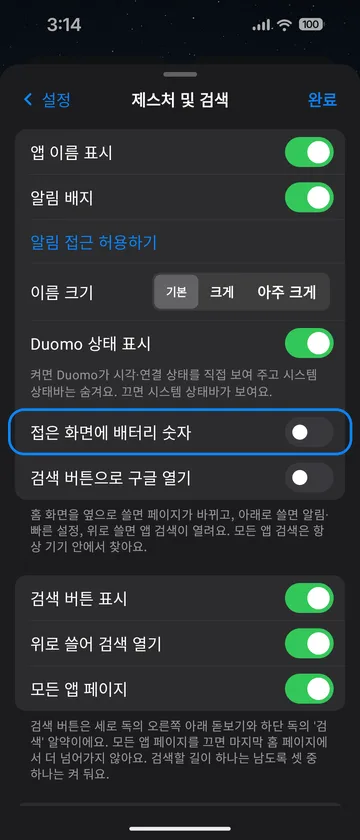
  • 알림 배지(시험): 앱이 보내는 안 읽은 수. 카카오톡처럼 홈 화면에 숫자를 직접 보내는 앱은 그 숫자도 보여요(설정 › 제스처 및 검색 › 알림 배지).
  • 설정 미리보기가 실제 홈과 같아요. 화면 비율과 아이콘·독 자리를 홈이 그린 그대로 보여 주고, 폴더블은 펼친 화면도 보여요.
  • 모든 앱 묶음에서 배지가 타일 모서리에 잘리던 것과, 홈 빈 곳을 누르면 네모 테두리가 옅게 남던 것을 고쳤어요.
  • Foldables: different background photos for the folded and unfolded screens. Turn on Settings › Wallpaper & Appearance › 'Different photo when folded' and pick one for each. The previous screen's photo no longer flashes when you fold or unfold.
  • Adjust the background photo. Tap 'Adjust position & size' to drag the photo and pinch to zoom right on Home. Each photo remembers its own setting.
  • Move several apps at once. In edit mode, tap apps to select them, then make a folder, move them to a page or remove them from Home from the bar below. Drag one selected app and the rest follow into the cells after it. (Tester request)
  • Move to front / end inside folders. Long-press an app in a folder to send it to either end. (Tester request)
  • Badges (experimental): unread counts that apps send. Apps like KakaoTalk that send a count to the Home screen now show that number too (Settings › Gestures & Search › Notification badges).
  • Settings previews match your real Home. They show the screen ratio and icon and dock positions exactly as Home draws them, including the unfolded screen on foldables.
  • Fixed badges clipped at the tile corner in All Apps groups, and a faint square outline left behind when tapping an empty spot on Home.
폴더 열면 앱만 · 편집은 편집 모드에서Folders open to just apps; edit in edit mode26년 10월 8일Oct 8, 2026

1.0.262026년 10월 8일October 8, 2026테스터에게 배포됨Rolled out to testers

  • 폴더를 열면 앱만 보여요. 폴더를 자주 여는 분께 '앱 추가'·색 점이 매번 보여 거슬렸어요. 이름 고치기·앱 추가·폴더 색은 홈을 길게 눌러 편집 모드에서 폴더를 열 때 나타나요. 앱을 끌어다 폴더에 넣는 것은 그대로예요.
  • Opening a folder shows just its apps. 'Add apps' and the color dots appeared every time, which got in the way for frequent folder users. Rename, Add apps and folder color now appear when you open the folder in edit mode (long-press Home). Dragging apps into folders works as before.
재시작 뒤 홈 배치 사라짐 수정 · 폴드8 펼친 화면 크기 맞춤Layout lost after restart fixed, Fold8 unfolded size option26년 10월 8일Oct 8, 2026

1.0.252026년 10월 8일October 8, 2026테스터에게 배포됨Rolled out to testers

  • 런처가 다시 켜질 때 홈 배치가 사라지던 문제를 고쳤어요. 최근 앱 '모두 닫기'·재부팅 등으로 런처가 다시 켜질 때, 홈 아래 한 줄 더에 폴더를 두었거나 따로 쓰기에서 폴더가 한 화면에만 있으면 저장된 배치를 못 읽어 빈 홈이 되고 편집이 막혔어요. (카페 제보) 앱을 지우지 않았다면 업데이트하면 배치가 그대로 돌아와요. 앞으로는 일부를 못 읽어도 나머지 배치는 살려서 보여 줘요.
  • 폴드8: 펼친 화면을 접은 화면과 같은 크기로. 설정 › 홈 화면 레이아웃 › 펼친 화면 › '접은 화면과 같은 크기'를 켜면 펼친 화면 한쪽 절반이 접은 화면과 같은 아이콘 크기·간격·독 위치로 그려져요(기본 끔). (카페 제보)
  • Fixed the Home layout disappearing after the launcher restarted. After 'Close all' in Recents, a reboot and so on, a folder in the extra Home row, or a folder on only one screen with separate layouts, made the saved layout unreadable, leaving an empty, uneditable Home. (Community report) If you didn't uninstall, updating brings your layout back. From now on, anything that can't be read is skipped and the rest of the layout still loads.
  • Fold8: unfolded screen at the folded size. Turn on Settings › Home layout › Unfolded › 'Same size as folded screen' to draw each half of the unfolded screen with the folded screen's icon size, spacing and dock position (off by default). (Community report)
이전 업데이트 보기 (1.0.2 ~ 1.0.24)Earlier updates (1.0.2 – 1.0.24)
설정 새 단장 · 위젯 화면별 · 아이콘 위로 쓸기 · 시간대별 배경Settings refresh, per-screen widgets, icon swipe-up, time-of-day backgrounds26년 10월 7일Oct 7, 2026

1.0.242026년 10월 7일October 7, 2026테스터에게 배포됨Rolled out to testers

  • 설정을 새로 정리했어요. 세워 두기 화면·백업은 각자 페이지로 나뉘고, 고르는 곳은 버튼·목록 모양을 한 가지 규칙으로 맞췄어요.
  • 따로 쓰기에서 위젯도 화면마다 따로. 접은 화면과 펼친 화면에 위젯을 다르게 놓을 수 있어요. 지금 놓인 위젯은 두 화면에 그대로 남아요. (폴드8 제보)
  • 앱 이름 크기를 접은 화면·펼친 화면 따로 정하고, 폴더 이름만 보이거나 숨길 수 있어요(설정 › 홈 화면 레이아웃 › 이름).
  • 아이콘 위로 쓸기. 홈 아이콘을 길게 눌러 '위로 쓸면 열기'를 고르면, 위로 쓸 때 그 앱의 바로가기(예: 카메라 셀피)나 다른 앱이 열려요. 탭은 지금처럼 그 앱을 열어요.
  • 폴더 색(폴더를 열고 아래 색 점)과 아이콘 모양(둥근 네모·스쿼클·원, 설정 › 배경화면 및 모양).
  • 시간대별 배경. 아침·낮·저녁·밤마다 다른 런처 배경 사진을 보여 줘요. 접은 화면 사진을 따로 두거나 밤엔 아이콘을 어둡게 할 수 있어요. 잠금화면 빌더의 '바꾸기'에도 시간대별이 생겼어요.
  • 위젯을 끌어서 놓기. 위젯을 추가할 때 미리보기를 원하는 칸으로 끌어요. 막힌 자리에 놓으면 가까운 빈 자리로 붙고, 화면 끝에 대면 옆 페이지로 넘어가요.
  • 자동 백업을 바뀔 때마다·하루 한 번·매주 중에 고르고(보관 7개·30개), 백업마다 만든 시각과 페이지·앱·위젯 수를 보여 줘요.
  • 폴더블 세워 두기. '사진' 보기에 쓸 사진을 따로 고르고 사진마다 시계 위치·글꼴·크기·심도 효과를 정해요(설정 › 세워 두기 화면 › 세워 두기 사진). 처음 보일 화면도 고를 수 있고, 넘어갈 때 가로로 돈 홈이 번쩍이지 않고 서서히 바뀌어요. 바깥 화면은 살짝 벌린 채 옆으로 눕혔을 때만 떠요.
  • 앱을 길게 눌렀을 때 메뉴·폴더·모든 앱이 더 부드럽게 열려요. 업데이트 직후에도 끊기지 않게 미리 준비해 둬요.
  • Reorganized settings. Stand mode and backup get their own pages, and every choice follows one set of button and list styles.
  • Per-screen widgets with separate layouts. Place widgets differently on the cover and inner screens. Widgets you already have stay on both. (Fold8 report)
  • Set the label size separately per screen, and show or hide folder labels on their own (Settings › Home layout › Labels).
  • Swipe up on icons. Long-press a Home icon and choose 'Swipe up to open' to open one of its shortcuts (like a selfie camera) or another app. Tapping still opens the app.
  • Folder colors (open a folder, tap a color dot) and icon shapes (rounded square, squircle, circle in Settings › Wallpaper & Appearance).
  • Time-of-day background. A different launcher photo for morning, day, evening and night, with an optional separate cover photo and dark icons at night. The lock screen builder's Change tab gets a time-of-day option too.
  • Drag to place widgets. When adding a widget, drag its preview to the spot you want. Drop it on a taken spot and it snaps to the nearest free one; hold it at the edge to move pages.
  • Auto backup on every change, daily or weekly (keep 7 or 30), with the time and page, app and widget counts for each backup.
  • Foldable Stand mode. Pick separate photos for the Photos view and set the clock position, font, size and depth effect for each (Settings › Stand mode › Stand photos). Choose the opening view, and the switch now fades instead of flashing a rotated Home. On the cover screen it appears only when slightly open and on its side.
  • The long-press menu, folders and All Apps open more smoothly, including right after an update.
폴드8 검색 알약 · 두 번 탭 안내 수정Fold8 search pill, double-tap prompt fixes26년 10월 7일Oct 7, 2026

1.0.232026년 10월 7일October 7, 2026테스터에게 배포됨Rolled out to testers

  • 폴드8 펼친 화면에서 위로 쓸어 연 검색 알약이 카메라 구멍에 가리지 않게 구멍 아래로 내려가요(디시 제보). 폴드8 실기가 없어 시스템이 알려 주는 구멍 위치를 기준으로 고쳤어요 — 여전히 겹치면 스크린샷과 함께 알려 주세요.
  • 설정에서 '홈 두 번 탭으로 화면 끄기'를 켤 때 접근성 권한 안내가 제대로 떠요(1.0.22에서는 안 떠서 설정을 직접 찾아가야 했어요).
  • On the Fold8 inner screen, the swipe-up search pill now stays below the camera hole (community report). Fixed using the cutout position the system reports; if it still overlaps, please send a screenshot.
  • The accessibility prompt now appears when you turn on 'Double-tap Home to turn off the screen' in Settings (in 1.0.22 you had to find the setting yourself).
홈 아래 한 줄 더(베타) · 두 번 탭으로 화면 끄기Extra home row (beta), double-tap to sleep26년 10월 7일Oct 7, 2026

1.0.222026년 10월 7일October 7, 2026테스터에게 배포됨Rolled out to testers

  • 홈 아래 한 줄 더(베타). 설정 › 홈 화면 레이아웃 › 베타에서 켜면 격자 아래 남는 공간에 앱 한 줄(4칸)이 더 생겨요. 접은 화면·펼친 화면 모두, 공간이 있을 때만 보여요. 앱과 폴더만 둘 수 있어요.
  • 홈 빈 곳을 두 번 탭하면 화면이 꺼져요. 설정 › 제스처 및 검색에서 켜요(기본 끔). 안드로이드 접근성 권한이 필요해요 — 설정 › 접근성 › 설치된 앱 › Duomo 제스처의 맨 위 토글(바로가기 토글이 아니에요). 이 서비스는 화면 끄기·알림창 열기에만 쓰고 화면 내용은 읽지 않아요. 지문 해제에는 영향이 없어요.
  • 업데이트한 분께는 세워 두기 화면·잠금화면 빌더 안내를 한 번 보여 줘요(새로 설치하면 둘러보기에 들어 있어요).
  • 긴 목록(홈에 둘 앱 고르기·폴더에 앱 추가)이 맨 위에서 더 내려도 닫히지 않아요.
  • Extra home row (beta). Turn it on in Settings › Home layout › Beta to add one more row of 4 apps below the grid when there is room, on both the cover and the inner screen. Apps and folders only.
  • Double-tap an empty spot on Home to turn the screen off. Enable it in Settings › Gestures & search (off by default). It needs Android's accessibility permission — Settings › Accessibility › Installed apps › Duomo gestures, the top toggle (not the shortcut toggle). The service only locks the screen and opens the shade; it never reads screen content. Fingerprint unlock is unaffected.
  • If you updated, a one-time intro to the stand screen and the lock screen builder appears (new installs see it in the tour).
  • Long lists (choose apps for Home, add apps to a folder) no longer close when you pull past the top.
사진 위젯 바로 뜨기 · 둘러보기 보강Instant photo widget, fuller intro tour26년 10월 6일Oct 6, 2026

1.0.212026년 10월 6일October 6, 2026테스터에게 배포됨Rolled out to testers

  • 사진 위젯이 바로 떠요. 고른 사진을 줄여 앱 안에 저장해 두고 그걸 읽어요. 접었다 펴거나 앱을 다시 켜도 다시 불러오느라 비어 있지 않고, 다음 사진으로 바뀔 때도 빈 판이 없어요. (업데이트 뒤 첫 한 번은 사본을 만드느라 예전처럼 잠깐 걸릴 수 있어요.)
  • 둘러보기(처음 켤 때 안내, 설정 › 도움말에서 다시 보기)에 폴더블 장이 생겼어요: 세워 두기 화면, 접은/펼친 화면 배치(맞추기·따로 쓰기), 접은 화면 첫 페이지 옵션. 꾸미기 장에 잠금화면 빌더 안내가 들어가고, 위젯 크기 설명을 지금 흐름에 맞췄어요.
  • The photo widget shows instantly. Chosen photos are stored downsized inside the app and read from there, so it no longer sits empty after folding or relaunching, and switching photos leaves no blank frame. (The first load after updating may take a moment while the copies are made.)
  • The intro tour (shown on first launch; replay from Settings › Help) has a foldable page: Stand mode, cover/unfolded layouts (Match / Separate), the first-cover-page option. The customization page now mentions the Lock screen builder, and the widget resize text matches the current flow.
접은 화면 첫 페이지 옵션 · 따로 쓰기 페이지 맞춤Left pane as first cover page, separate-layout page sync26년 10월 6일Oct 6, 2026

1.0.202026년 10월 6일October 6, 2026테스터에게 배포됨Rolled out to testers

  • 접은 화면 첫 페이지에 펼친 화면 왼쪽 판(설정 › 홈 화면 › 페이지, 기본 끔): 켜면 펼친 화면 왼쪽 위젯 판이 접은 화면 1페이지가 되어, 접은 1·2페이지가 펼친 첫 판의 왼쪽·오른쪽과 맞아요. (폴드8 제안)
  • 따로 쓰기에서 한 화면의 페이지를 지우거나 순서를 바꾸면 다른 화면의 페이지 번호도 함께 맞춰져요. 위젯은 두 화면이 공유해서, 번호가 어긋나면 펼쳤을 때 위젯이 엉뚱한 앱을 덮고 그 앱이 옮겨졌어요. 지운 페이지의 다른 화면 앱은 지우지 않고 맨 뒤 페이지로 보내요.
  • 위젯에 덮여 옮겨지는 앱은 위젯 줄(맨 위 두 줄) 대신 앱 줄의 빈 칸으로 가요.
  • 따로 쓰기에서 접었다 펴면 펼친 화면 왼쪽 판의 앱·폴더가 사라지던 문제를 고쳤어요. 접은 화면에 같은 앱이 있으면 겹침으로 보고 왼쪽 판에서 지우던 버그예요. (폴드8 제보)
  • 1.0.19의 변경(위젯 내용 크기·접은 화면 세로 채우기·꾸미기 기능 개방·검색 제스처·세워 두기 수정)을 함께 담고 있어요.
  • Left pane as first cover page (Settings › Home Screen › Pages, off by default): the unfolded screen's left widget pane becomes cover page 1, so cover pages 1 and 2 match the left and right halves of the first unfolded view. (Fold8 suggestion)
  • With separate layouts, deleting or reordering a page on one screen now keeps the other screen's page numbers in step. Widgets are shared between screens, so a mismatch could make a widget cover the wrong apps after unfolding and shove them aside. Apps on the deleted page of the other screen move to a last page instead of being removed.
  • Apps displaced by a widget now go to a free app-row cell instead of the widget rows at the top.
  • Fixed the unfolded left pane losing its apps and folders after folding and unfolding with separate layouts: apps that also existed on the cover were treated as duplicates and removed. (Fold8 report)
  • Includes everything from 1.0.19 (widget content size, cover fill height, customization features opened up, search gesture fixes, Stand mode fixes).
위젯 내용 크기 · 접은 화면 채우기 · 꾸미기 기능 개방Widget content size, cover fill, customization opened up26년 10월 6일Oct 6, 2026

1.0.192026년 10월 6일October 6, 20261.0.20에 묶어 배포됨Shipped with 1.0.20

  • 위젯 내용 크기: 편집 모드에서 위젯을 누르면 크기 조절 틀 아래에 '내용 크기' −/+ 가 생겨요. 칸은 그대로 두고 안의 글씨·그림만 80~130%로. 메뉴의 '크기 및 위치'는 바로 이 틀을 열고, 손잡이를 끌면 위젯 내용도 그 크기로 미리 보여요. (폴드8 제안)
  • 삼성 캘린더·날씨처럼 홈 화면에서만 세부 내용을 보여 주는 위젯이 Duomo에서도 일정·시간별 예보를 보여 줘요. 위젯에 "홈 화면에 놓였다"고 알려 주지 않던 문제. (폴드8 제보)
  • 접은 화면 세로 독 배치에도 '세로로 채우기'(설정 › 홈 화면 › 위치). 줄 간격을 늘려 위아래 공백을 채우고 독 캡슐은 기본 크기를 지켜요. (폴드8 제보)
  • 비공개 테스트 동안 아이콘 어둡게·색조와 잠금화면 빌더를 모두에게 열었어요(설정 › 배경화면). 의견을 들려주세요.
  • 상태 시계 크기 조절(설정 › 제스처 및 검색 › Duomo 상태 표시 아래, 접은·펼친 화면 따로). 펼친 화면 시계가 아이콘 이름보다 커 보인다는 제보.
  • 위로 쓸어 검색: 조금 비스듬히 올려도 열리고, 열린 뒤 페이지가 넘어가 가려지지 않아요. 화면 맨 아래 홈·최근 앱 제스처 구역에서 시작한 쓸기에는 열리지 않아요(최근 앱 뒤에 검색창이 남던 문제). (폴드8 제보 2건)
  • 펼쳤다 접을 때 세워 두기 화면이 잠깐 번쩍이던 문제를 고쳤어요. 세워 두기 큰 시계는 두껍고 둥근 글씨에 쌍점으로.
  • 설정 이름 정리: '듀오처럼 앱 3줄 높이에 맞추기' → '독 높이를 앱 3줄에 맞추기'(동작은 같아요).
  • Widget content size: in edit mode, tap a widget and the resize frame gets a 'Content size' −/+ control. The cell stays the same; only the text and graphics scale from 80 to 130%. 'Size & position' in the widget menu now opens this frame directly, and dragging the handle previews the widget at that size. (Fold8 suggestion)
  • Widgets that only show details on a home screen, like Samsung Calendar and Weather, now show events and hourly forecasts in Duomo too. Duomo wasn't telling them they were on a home screen. (Fold8 report)
  • Fill height on the cover screen with the side dock (Settings › Home Screen › Position): rows spread to fill the top and bottom gaps while the dock keeps its size. (Fold8 report)
  • Dark and Tinted icons and the Lock screen builder are open to everyone during closed testing (Settings › Wallpaper). Tell us what you think.
  • Status clock size (Settings › Gestures & Search, under Duomo status; cover and unfolded separately), from a report that the unfolded clock looked larger than app names.
  • Swipe up to search: opens on a slightly diagonal swipe and is no longer dismissed by a page turn. Swipes starting in the bottom Home/Recents gesture zone don't open it any more (search used to linger behind Recents). (two Fold8 reports)
  • Fixed Stand mode flashing while folding the phone. The big Stand clock now uses a bold rounded face with a colon.
  • Setting renamed: 'Fit to three app rows like Duo' → 'Fit the dock to three app rows' (same behavior).
설정 그림 도움말 · 세워 두기 배터리Animated setting help, Stand mode battery26년 10월 6일Oct 6, 2026

1.0.182026년 10월 6일October 6, 2026테스터에게 배포됨Rolled out to testers

  • 설정 이름 옆 "?"를 누르면 그 설정이 실제로 어떻게 바뀌는지 움직이는 그림으로 보여 줘요. 세로로 채우기·위 여백·위로 쓸어 검색·모든 앱 페이지·검색 버튼·폴더 작게·Duomo 상태 표시·세워 두기 화면 8개. 아래 FAQ '설정 그림으로 보기'에서도 볼 수 있어요.
  • 세워 두기 화면이 배터리를 덜 써요. 런처가 앞에 보일 때만 센서를 쓰고, 밤엔 화면 밝기도 낮춰요.
  • Tap the "?" next to a setting to see an animated demo of what it changes: Fill height, Top margin, Swipe up to search, All Apps page, Search button, Smaller folders, Duomo status and Stand mode. They're also in the FAQ under 'Settings at a glance'.
  • Stand mode only uses sensors while the launcher is in front and lowers screen brightness at night, so it uses less battery.
세워 두기 화면 · 위젯 설정 지키기 · 폴더 작게Stand mode, keeping widget settings, smaller folders26년 10월 6일Oct 6, 2026

1.0.172026년 10월 6일October 6, 2026테스터에게 배포됨Rolled out to testers

  • 세워 두기 화면: 폴더블을 살짝 벌려 세우거나 반 접어 노트북처럼 두면 시계·달력·사진 화면이 떠요. 좌우로 쓸면 위젯·사진·큰 시계 보기가 바뀌고, 위젯 보기의 두 칸은 위아래로 쓸어 아날로그·디지털 시계·달력·배터리·날짜·사진 중에서 고를 수 있어요. 큰 시계는 위아래로 색이 바뀌어요. 충전 중엔 화면을 켜 두고, 밤(23시~6시)엔 어둡게 바뀌어요. 설정 › 홈 화면 › 세워 두기 화면에서 끄거나 '충전 중에만'으로 바꿀 수 있어요.
  • 위젯을 못 불러올 때 그 자리를 누르면 새로 연결하지 않고 위젯 앱을 깨워 다시 불러와요. 배경 없음 같은 위젯 설정이 그대로 남아요(정말 다시 연결하려면 길게 누르기). (폴드8 제보)
  • 모든 앱 폴더를 작게 볼 수 있어요(설정 › 제스처 및 검색 › 모든 앱 폴더 작게). (폴드8 제안)
  • Stand mode: stand a foldable slightly open, or half fold it like a laptop, to see a clock, calendar and photo screen. Swipe sideways between widgets, photos and a big clock; in widgets, swipe each side up or down to pick analog or digital clock, calendar, battery, date or photo. Swipe the big clock up or down for colors. The screen stays on while charging and dims at night (11 PM–6 AM). Turn it off or set it to charging only in Settings › Home Screen › Stand mode.
  • When a widget can't load, tapping its spot wakes the widget's app and reloads it instead of reconnecting, so settings like a transparent background stay (hold to reconnect). (Fold8 report)
  • All Apps folders can be shown smaller (Settings › Gestures & Search › Smaller All Apps folders). (Fold8 suggestion)
펼친 화면 위젯 키우기 · 접은 화면 세로 고정 · 버그 수정Bigger widgets when unfolded, cover locked to portrait, fixes26년 10월 5일Oct 5, 2026

1.0.162026년 10월 5일October 5, 2026테스터에게 배포됨Rolled out to testers

  • 펼친 화면에서 설정 › 홈 화면 › 세로로 채우기를 켜면 위젯 칸도 줄과 함께 커져요. 날씨 시간별 예보나 캘린더 일정처럼 위젯이 높이에 따라 줄이던 내용이 펼친 화면에서도 나와요. (펼친 화면 위젯이 접은 화면보다 낮아 내용이 줄던 제보)
  • 세로로 채우기를 켜도 오른쪽 독은 기본 크기를 유지하고 앱 줄 가운데에 놓여요.
  • 접은 화면은 세로로 고정돼요. 접은 채 눕히면 펼친 화면 배치가 그려지던 문제를 고쳤어요.
  • On the unfolded screen, turn on Settings › Home Screen › Fill height and the widget rows grow with the app rows, so content widgets drop at smaller heights, like hourly weather or calendar events, shows there too. (Reported: unfolded widgets were shorter than on the cover.)
  • With Fill height on, the side dock keeps its normal size, centered on the app rows.
  • The cover screen is locked to portrait. Turning the folded phone sideways used to draw the unfolded layout.
따로 쓰기 앱 사라짐 · 위젯 놓기 · 폴더 모서리 수정Fixes for separate layouts, widget placement and folder corners26년 10월 5일Oct 5, 2026

1.0.152026년 10월 5일October 5, 2026테스터에게 배포됨Rolled out to testers

  • 수정: 접은 화면·펼친 화면 배치를 따로 쓸 때 한쪽에서 놓은 위젯이 다른 화면의 같은 자리에 있던 앱을 지우던 문제를 고쳤어요. 이제 그 앱은 빈 칸으로 옮겨져요. (이미 사라진 앱은 모든 앱에서 다시 끌어 놓아 주세요.)
  • 따로 쓰기에서 위젯을 놓으면 위젯은 두 화면이 함께 쓴다는 안내가 한 번 나와요.
  • 수정: 위젯을 놓을 때 페이지를 넘기면 큰 위젯이 '자리가 없어요'가 되던 문제를 고쳤어요. 빈 새 페이지에서는 바로 들어가요.
  • 수정: 모든 앱 폴더의 작은 아이콘 묶음 귀퉁이가 다르게 둥글던 문제를 고쳤어요.
  • Fixed: with separate cover/unfolded layouts, a widget placed on one screen deleted the app sitting in that spot on the other screen. That app now moves to a free cell. (Apps already lost can be dragged back from All Apps.)
  • With separate layouts, placing a widget shows a one-time note that widgets are shared by both screens.
  • Fixed: while placing a widget, turning the page could leave a large widget at 'No room'. On a blank new page it now fits right away.
  • Fixed: the small icon cluster in All Apps folders had unevenly rounded corners.
이름 겹침 · 펼친 화면 배치 수정Fixes for overlapping names and the unfolded layout26년 10월 4일Oct 4, 2026

1.0.142026년 10월 4일October 4, 2026테스터에게 배포됨Rolled out to testers

  • 수정: 앱 이름을 켜면 맨 위 두 줄(위젯 자리)에 둔 앱·폴더의 이름이 아랫줄 아이콘에 겹치던 문제를 고쳤어요.
  • 수정: 펼친 화면에서 위 여백·줄 간격에 따라 홈이 위아래로 밀리고 마지막 줄 이름이 잘리던 문제, 위 여백 '가운데'가 위로 쏠리던 문제를 고쳤어요.
  • Fixed: with app names on, names of apps and folders in the top two rows (beside widgets) overlapped the icons below.
  • Fixed: on the unfolded screen, Home could scroll and cut off the last row's names depending on the top margin and row spacing, and the 'Center' top margin sat too high.
접은 화면 세로 독도 크기 조절 · 모든 앱 분류 수정Size controls for the cover side dock, All Apps fix26년 10월 4일Oct 4, 2026

1.0.132026년 10월 4일October 4, 2026테스터에게 배포됨Rolled out to testers

  • 접은 화면 세로 독 배치(폴드8 등)에서도 편집 모드의 자 모양 버튼으로 아이콘 크기와 줄 간격을 바꿀 수 있어요. 설정 › 홈 화면에도 같은 슬라이더가 생겼어요.
  • 수정: 모든 앱에서 앱의 분류를 바꾸면 분류 폴더 순서가 뒤바뀌던 문제를 고쳤어요. 이제 폴더 순서는 고정이에요(기본 분류 → 만든 분류 → 기타).
  • 수정: 모든 앱을 열 때마다 앱이 잠깐 다른 분류에 보였다가 옮겨 가던 문제를 고쳤어요.
  • With the side dock on the cover screen (Fold8 and others), the ruler button in edit mode now adjusts icon size and row spacing. The same sliders are in Settings › Home screen.
  • Fixed: changing an app's category in All Apps reshuffled the category folders. Folder order is now fixed (built-in categories → your categories → Other).
  • Fixed: apps briefly appearing in a different category each time All Apps opened.
위젯 스택: 한 자리에 위젯 여러 개Widget stacks: several widgets in one spot26년 10월 3일Oct 3, 2026

1.0.122026년 10월 3일October 3, 2026테스터에게 배포됨Rolled out to testers

  • 위젯을 길게 눌렀다 떼서 '스택 만들기 (위젯 겹치기)'를 고르면 같은 자리에 위젯을 겹쳐 둘 수 있어요. 스택 위에서 위아래로 쓸어 넘기고, 몇 번째인지는 오른쪽 점으로 보여요.
  • '스택 편집'에서 순서를 바꾸거나 위젯을 빼고, 홈에 올 때마다·1시간마다 저절로 넘어가게 할 수 있어요. 하나만 남기면 보통 위젯으로 돌아가요.
  • 스택을 옮기거나 크기를 바꾸면 안의 위젯이 모두 함께 바뀌어요. 목록처럼 스스로 스크롤되는 위젯은 오른쪽 가장자리(점 있는 곳)에서 쓸어 넘겨요.
  • Long-press a widget, release, and choose 'Make a stack (layer widgets)' to layer widgets in one spot. Swipe up or down on the stack to flip; dots on the right show where you are.
  • In 'Edit stack' you can reorder or remove widgets and have the stack rotate every time you go home or every hour. With one widget left it becomes a normal widget again.
  • Moving or resizing a stack changes every widget in it. For widgets that scroll on their own, like lists, swipe along the right edge (where the dots are).
검색 버튼 끄기 · 접은 화면 배터리 숫자Hide the search button, cover battery percentage26년 10월 3일Oct 3, 2026

1.0.112026년 10월 3일October 3, 2026테스터에게 배포됨Rolled out to testers

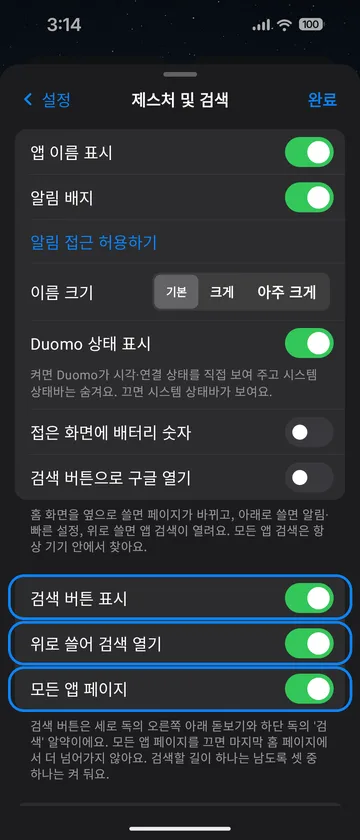
  • 검색 버튼(세로 독의 오른쪽 아래 돋보기, 하단 독의 '검색' 알약)을 끌 수 있어요(설정 › 제스처 및 검색). 검색할 길이 하나는 남도록 위로 쓸어 검색·모든 앱 페이지 중 하나는 켜 둬요.
  • 접은 화면 세로 독에서도 상태 링 아래에 배터리 숫자를 보일 수 있어요(설정 › 제스처 및 검색).
  • 펼친 화면에서 독에 앱을 5개 넘게 넣으면 위아래로 함께 늘어나요. 아래 검색 버튼에 붙지 않아요.
  • 펼친 화면에서 다음 페이지로 넘긴 뒤 왼쪽 끝에 이전 페이지 위젯이 걸쳐 보이던 문제를 고쳤어요.
  • 처음 둘러보기에 간격 조절 버튼 안내와, 폴더블에서 접은·펼친 화면 배치를 함께 쓸지 따로 쓸지 고르는 단계가 들어갔어요(설정 › 도움말 › 둘러보기 다시 보기).
  • You can hide the search button (the magnifier at the bottom right with the side dock, or the Search pill above the bottom dock) in Settings › Gestures & Search. Swipe-up search or the All Apps page stays on so you can always search.
  • The cover screen side dock can show the battery percentage under the status ring (Settings › Gestures & Search).
  • On the unfolded screen, a dock with more than four apps grows both up and down instead of reaching the search button.
  • Fixed part of an earlier page's widget showing at the left edge after swiping on the unfolded screen.
  • The first-run tour now explains the spacing button, and on foldables lets you choose shared or separate layouts for the folded and unfolded screens (Settings › Help › Replay the tour).
모든 앱 분류 편집 · 시스템 배경화면 맞추기Edit All Apps categories, match the system wallpaper26년 10월 2일Oct 2, 2026

1.0.102026년 10월 2일October 2, 2026테스터에게 배포됨Rolled out to testers

  • 모든 앱: 앱을 길게 눌러 '분류 바꾸기'를 고르면 다른 분류로 옮길 수 있어요. 분류 이름을 바꾸거나 새 분류(예: 업무)를 만들 수도 있어요.
  • 1×1 위젯은 어디에 두든 앱 아이콘과 같은 크기로 나와요.
  • 런처 배경 사진을 시스템 배경화면에도 적용할 수 있어요(설정 › 배경화면 및 모양). 최근 앱 화면의 배경이 같아져요.
  • 폭이 넓은 커버 화면에서 하단 독을 쓸 때 '화면 폭 전체 쓰기'를 켤 수 있어요(설정 › 홈 화면 › 도크).
  • 위젯 검색에서 한글로 찾아도 영어 이름 위젯이 나와요(예: 버즈 → Buds).
  • 수정: 일부 기기(폴드8 커버 등)에서 하단 독일 때 왼쪽 위 시계가 안 보이던 문제, 펼친 화면에서 페이지마다 격자 시작 높이가 다르던 문제를 고쳤어요.
  • All Apps: touch and hold an app and choose 'Change category' to move it. You can also rename a category or create a new one (for example, Work).
  • 1×1 widgets are the same size as an app icon wherever you place them.
  • Set the launcher background photo as the system wallpaper too (Settings › Wallpaper & Appearance), so the recent apps screen matches.
  • On wide cover screens with the bottom dock, turn on 'Use the full screen width' (Settings › Home Screen › Dock).
  • Widget search: Korean words also match English widget names.
  • Fixes: the top-left clock missing with the bottom dock on some devices (e.g. Fold8 cover); pages starting at different heights on the unfolded screen.
새 페이지 추가 · 상태 표시 선택, '모든 앱'New page, status display choice, 'All Apps'26년 10월 2일Oct 2, 2026

1.0.92026년 10월 2일October 2, 2026테스터에게 배포됨Rolled out to testers

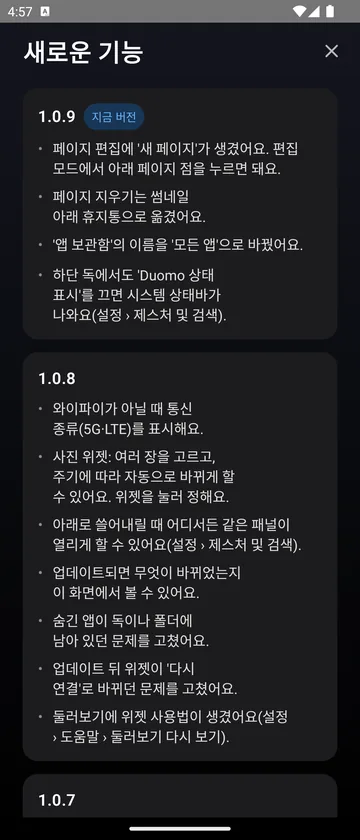
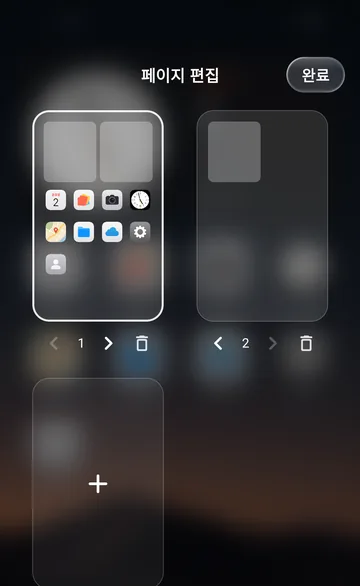
  • 페이지 편집에 '새 페이지'가 생겼어요. 편집 모드에서 아래 페이지 점을 누르면 돼요. 빈 페이지에 앱이나 위젯을 놓으면 그대로 남아요.
  • 페이지 지우기는 썸네일 아래 휴지통으로 옮겼어요.
  • 하단 독에서도 'Duomo 상태 표시'를 끄면 시스템 상태바가 나와요(설정 › 제스처 및 검색). 예전 이름은 '오른쪽 위 상태 표시'예요.
  • '앱 보관함'의 이름을 '모든 앱'으로 바꿨어요.
  • 폴더블에서 접은 화면과 펼친 화면이 같은 배치를 함께 쓴다는 것을 편집 모드에서 한 번 알려 줘요. 따로 쓰려면 설정 › 홈 화면 › '화면마다 따로 쓰기'를 고르세요.
  • 폴더 안에서 앱을 길게 눌렀다 떼면 메뉴가 나와요. 순서 옮기기, 폴더에서 제거, 앱 삭제를 폴더 안에서 바로 할 수 있어요.
  • 폴더 만들기가 검색과 아이콘이 있는 목록으로 바뀌었고, 여러 앱을 이어서 넣을 수 있어요.
  • 수정: 세로 독에서 줄 간격을 키우면 위 두 줄만 촘촘하던 문제, 조절 바가 좁게 나오던 문제를 고치고, 일반 폰에서는 폴더블 전용 설정을 숨겼어요.
  • Page editing has a 'New page' card: in edit mode, tap the page dots at the bottom. Put an app or widget on the empty page and it stays.
  • Deleting a page moved to the trash button under each thumbnail.
  • With the bottom dock too, turning off 'Duomo status display' shows the system status bar (Settings › Gestures & Search). It was called 'Status in top right'.
  • 'App Library' is now called 'All Apps'.
  • On foldables, a one-time tip in edit mode explains that the cover and unfolded screens share one layout. Choose 'Keep separate layouts' under Settings › Home Screen to split them.
  • In a folder, touch and hold an app, then release for a menu: reorder, remove from the folder, or uninstall right there.
  • Create folder is now a list with search and icons, and you can add several apps in a row.
  • Fixes: the top two rows staying tight when row spacing is increased with the side dock; the cramped adjust bar; foldable-only settings are hidden on regular phones.
5G 표시 · 사진 위젯 자동 변경, 앱 안 업데이트 안내5G label, rotating photo widget, in-app update notes26년 10월 2일Oct 2, 2026

1.0.82026년 10월 2일October 2, 2026테스터에게 배포됨Rolled out to testers

  • 와이파이가 아닐 때 상태 표시에 통신 종류(5G·LTE)가 나와요.
  • 사진 위젯: 사진을 여러 장 고를 수 있고, 1시간마다·하루마다·홈에 올 때마다 자동으로 바뀌게 할 수 있어요. 위젯을 누르면 메뉴가 나와요. 화질도 더 선명해졌어요.
  • 아래로 쓸어내릴 때 어디서든 같은 패널이 열리게 할 수 있어요(설정 › 제스처 및 검색).
  • 설정에 '새로운 기능' 화면이 생겼어요. 업데이트한 뒤에는 홈에 안내가 한 번 떠요.
  • 업데이트 뒤 위젯이 '다시 연결'로 바뀌던 문제를 고쳤어요. (이번 업데이트를 받을 때 한 번 더 생길 수 있어요. 그 자리를 눌러 다시 연결하면 돼요.)
  • 둘러보기에 위젯 넣기·크기 바꾸기·사진 위젯 사용법이 생겼어요(설정 › 도움말 › 둘러보기 다시 보기).
  • 숨긴 앱이 독이나 폴더에 그대로 남아 있던 문제를 고쳤어요.
  • The status area shows the network type (5G/LTE) when you're not on Wi-Fi.
  • Photo widget: pick several photos and have them change every hour, every day, or each time you come home. Tap the widget for the menu. Photos are sharper too.
  • Optionally open the same panel wherever you swipe down (Settings › Gestures & Search).
  • A new "What's new" screen in Settings, plus a one-time note on Home after each update.
  • Fixed widgets turning into 'Reconnect' after an update. (It may happen once more when you take this update; tap the spot to reconnect.)
  • The tour now explains adding and resizing widgets and the photo widget (Settings › Help › Replay the tour).
  • Fixed hidden apps staying in the dock or a folder.
독 폴더 · 왼쪽 독, 모든 앱 켜고 끄기Dock folders, left dock, the All Apps page on or off26년 10월 2일Oct 2, 2026

1.0.72026년 10월 2일October 2, 2026테스터에게 배포됨Rolled out to testers

  • 독에 폴더를 둘 수 있어요. 폴더를 독으로 끌어 놓으면 되고, 누르면 그 자리에서 열려요.
  • 독을 왼쪽에 둘 수 있어요. 설정 › 홈 화면 › 도크의 '독을 왼쪽에 두기', 또는 처음 둘러보기에서 골라요.
  • 모든 앱 페이지와 '위로 쓸어 검색'을 켜고 끌 수 있어요(설정 › 제스처 및 검색). 꺼도 앱은 검색으로 찾을 수 있어요.
  • 세로 독에서 모든 앱을 열면 독을 숨기고 화면 폭 전체로 보여 줘요.
  • 홈의 빈 곳 어디를 길게 눌러도 편집 모드가 열려요. 방금 한 변경을 되돌리는 버튼도 생겼어요.
  • 내 배치: 맞춰 둔 간격·크기·독 위치를 3칸까지 저장해 두고 바꿔 써요(설정 › 홈 화면).
  • 하단 독 배치에서도 아이콘 크기와 줄 간격을 조절할 수 있어요. 일반 폰도 돼요.
  • Folders in the dock: drag a folder onto the dock, then tap it to open it in place.
  • Put the dock on the left: 'Dock on the left' in Settings › Home Screen › Dock, or pick it in the first-run tour.
  • Turn the All Apps page and swipe-up search on or off (Settings › Gestures & Search). With it off you can still find apps with search.
  • With the side dock, All Apps now hides the dock and uses the full screen width.
  • Touch and hold any empty spot on Home to open edit mode, with a new button to undo your last change.
  • My layouts: save up to three sets of spacing, size and dock position and switch between them (Settings › Home Screen).
  • Icon size and row spacing can be adjusted with the bottom dock too, including on regular phones.
왼쪽 독 · 독 안의 폴더Left dock · a folder in the dock
세로 독의 모든 앱All Apps with the side dock
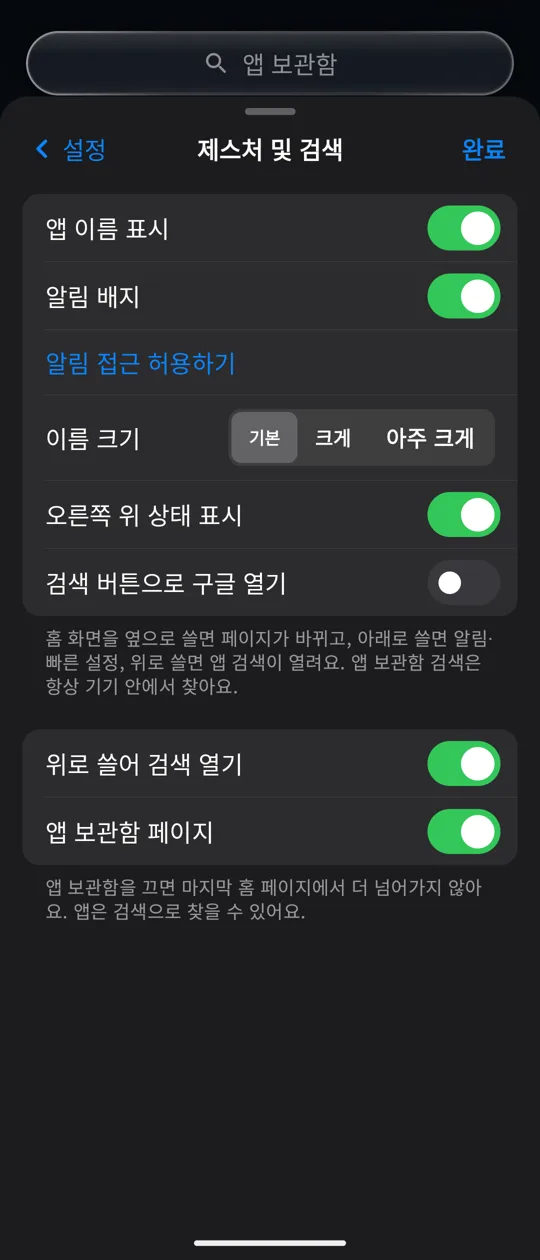
제스처 켜고 끄기Gesture toggles
홈에서 바로 간격 조절, 둘러보기에서 독 위치 고르기Adjust spacing right on Home, pick the dock position in the tour26년 10월 2일Oct 2, 2026

1.0.62026년 10월 2일October 2, 2026테스터에게 배포됨Rolled out to testers

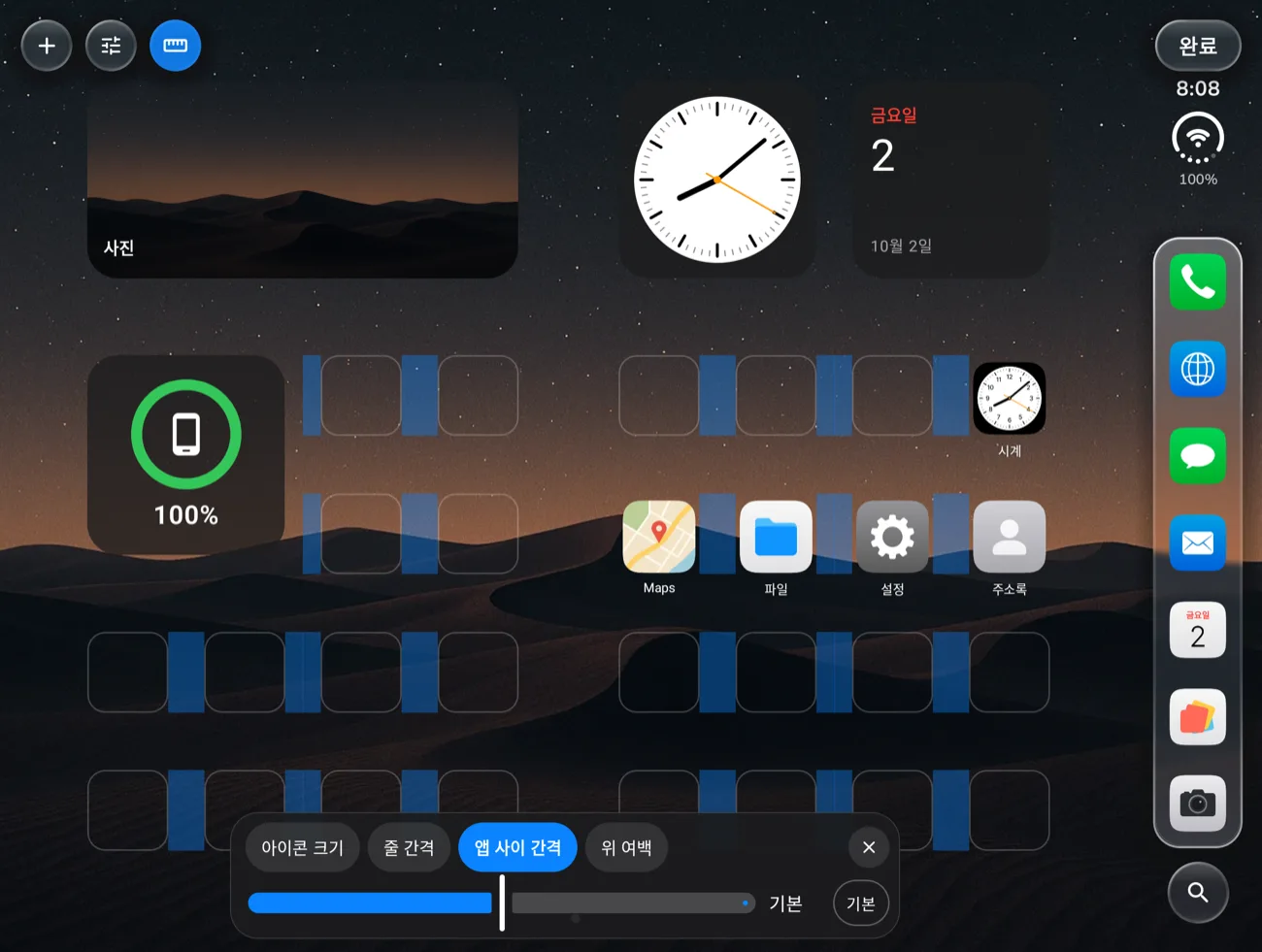
  • 홈 편집 모드 왼쪽 위에 자 모양 버튼이 생겼어요. 누르면 아래에 조절 바가 뜨고, 아이콘 크기·줄 간격·앱 사이 간격·위 여백을 홈을 보면서 바로 바꿀 수 있어요.
  • 조절 중인 자리를 색으로 표시해 어디가 바뀌는지 바로 보여요. '기본'을 누르면 그 값만 되돌아가요.
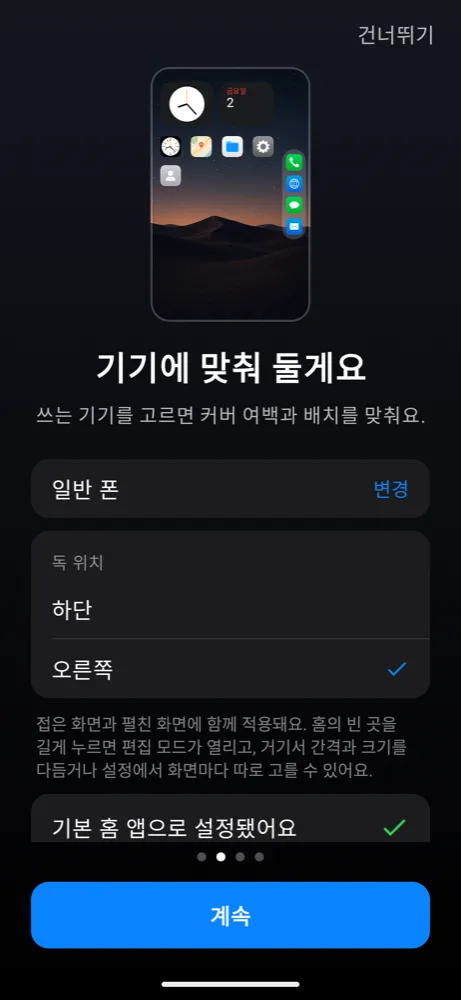
  • 처음 둘러보기에서 독 위치(하단·오른쪽)를 고를 수 있어요. 고르면 미리보기가 바로 바뀌어요.
  • 독에 앱이 많아 아이콘이 작아질 때 독 배경 높이도 같은 비율로 줄여, 위아래가 휑해 보이던 것을 고쳤어요.
  • 접히지 않는 일반 폰은 세로 화면으로 고정해요. 눕혔을 때 배치가 깨지던 문제를 막았어요.
  • 위젯 연결 지키기: 위젯 연결이 사라지면 같은 자리에 같은 위젯을 다시 연결해요. 허용이 필요하면 그 자리에서 '다시 연결'을 한 번 누르면 돼요.
  • Edit mode has a new ruler button at the top left. It opens an adjust bar so you can change icon size, row spacing, space between apps and the top margin while looking at Home.
  • The area you're adjusting is tinted, so you can see what changes. 'Default' resets just that value.
  • Pick the dock position (bottom or right) in the first-run tour; the preview updates right away.
  • When a full dock shrinks its icons, the dock background now shrinks with them instead of leaving tall empty padding.
  • Regular (non-folding) phones stay in portrait, which prevents a broken layout in landscape.
  • Widget protection: when a widget loses its connection, the same widget is reconnected in the same spot. If permission is needed, tap 'Reconnect' once.
편집 모드 조절 바 · 앱 사이 간격Adjust bar in edit mode · space between apps
둘러보기 · 독 위치Tour · dock position
알림 숫자 배지, 사라지던 위젯 수정Notification count badges, disappearing widgets fixed26년 10월 1일Oct 1, 2026

1.0.52026년 10월 1일October 1, 2026테스터에게 배포됨Rolled out to testers

  • 앱 아이콘에 알림 숫자 배지를 보여 줘요. '알림 접근'을 허용하면 켜지고, 설정 › 제스처 및 검색에서 끌 수 있어요. 알림 내용은 읽거나 저장하지 않고 개수만 세요.
  • 위젯이 사라지고 교체하라는 안내만 남던 문제를 고쳤어요. 잠깐 정보를 못 읽어도 다시 불러와요.
  • 연결이 끊긴 위젯은 눌러서 바로 다시 추가할 수 있어요.
  • 처음 둘러보기 안내를 정리했어요.
  • Notification count badges on app icons. Allow 'Notification access' to turn them on; switch them off in Settings › Gestures & Search. Only the count is used; notification content is never read or stored.
  • Fixed widgets disappearing and asking to be replaced; they now reload when their info is briefly missing.
  • A widget that lost its connection can be re-added with one tap.
  • Tidied up the first-run tour.
접은 화면 · 펼친 화면 배치, 함께 또는 따로Folded and unfolded layouts, shared or separate26년 10월 1일Oct 1, 2026

1.0.42026년 10월 1일October 1, 2026테스터에게 배포됨Rolled out to testers

  • 설정 › 홈 화면에서 앱 배치를 고를 수 있어요. 펼친 화면으로 맞추기, 접은 화면으로 맞추기, 화면마다 따로 쓰기 중에 골라요.
  • 따로 쓰면 홈 앱과 독을 화면마다 기억해요. 위젯·폴더·펼친 화면 전용 페이지는 함께 써요.
  • 펼친 화면 하단 독: 아이콘을 오른쪽 독과 같은 크기로 맞추고, 줄 간격을 고르게 다듬었어요. 폴드7 등 다른 폴드에서도 쓸 수 있어요.
  • 독에 넣은 앱이 커버에서도 모두 보이고, 펼친 화면 모든 앱·검색에서는 오른쪽 위 시계 표시를 숨겼어요.
  • Pick how apps are laid out in Settings › Home Screen: match the unfolded screen, match the folded screen, or keep separate layouts.
  • Separate layouts remember Home apps and the dock per screen. Widgets, folders and the unfolded-only page stay shared.
  • Unfolded bottom dock: icons match the side-dock size and rows are evenly spaced. It now works on Fold7 and other Folds too.
  • Every dock app shows on the cover screen, and the clock rail is hidden in the unfolded All Apps screen and search.
펼친 화면 · 하단 독 (앱 7개)Unfolded · bottom dock (7 apps)
접은 화면Folded
펼친 화면 하단 독, 폴더에 앱 검색해서 넣기Bottom dock unfolded, search to add apps to folders26년 10월 1일Oct 1, 2026

1.0.32026년 10월 1일October 1, 2026테스터에게 배포됨Rolled out to testers

  • 갤럭시 Z 폴드8 펼친 화면에 '하단 독 배치'를 추가했어요. 설정 › 도크에서 오른쪽 독과 하단 독 중 고를 수 있어요.
  • 폴더의 '앱 추가'에서 앱을 검색해 여러 개를 한 번에 넣을 수 있어요.
  • 펼친 화면 오른쪽 독과 시계 사이 간격을 넓혔어요.
  • New 'Bottom dock' layout for the Galaxy Z Fold8 unfolded screen. Pick the side dock or the bottom dock in Settings › Dock.
  • Search and add several apps at once from a folder's 'Add apps'.
  • More space between the side dock and the clock on the unfolded screen.
오른쪽 독Side dock
하단 독Bottom dock
펼친 화면 간격과 독을 다시 맞췄어요Reworked unfolded spacing and the dock26년 10월 1일Oct 1, 2026

1.0.22026년 10월 1일October 1, 2026테스터에게 배포됨Rolled out to testers

  • 독에 앱을 더 넣으면 칸이 늘어나요. 커버는 최대 6개, 펼친 화면은 최대 7개까지 들어가요.
  • 갤럭시 Z 폴드8 펼친 화면: 앱 사이 간격을 넓히고, 두 페이지 사이와 아래쪽 빈 공간을 줄였어요.
  • 펼친 화면 독 아이콘 크기와 간격을 다듬고, 설정에 '앱 사이 간격' 조절을 추가했어요.
  • The dock grows as you add apps: up to 6 on the cover and 7 on the unfolded screen.
  • Galaxy Z Fold8 unfolded: wider spacing between apps, less empty space between the two pages and at the bottom.
  • Refined the unfolded dock's icon size and spacing, plus a new 'Space between apps' setting.

자주 묻는 질문FAQ

많이 물어보신 것들.Things people ask.

설정 그림으로 보기Settings at a glance

세로로 채우기Fill height

줄 간격을 늘려 홈을 위아래로 꽉 채워요. 펼친 화면에서는 위젯 칸도 함께 커져요. 설정 › 홈 화면 › 위치.Spreads the rows to fill Home. On the unfolded screen widget rows grow too. Settings › Home Screen › Position.

위 여백 · 가운데Top margin · Center

홈 격자가 시작하는 높이예요. 끝까지 올리면 '가운데'가 되어 세로 가운데에 맞춰져요.Where the Home grid starts. Slide it all the way for 'Center'.

모든 앱 페이지All Apps page

마지막 홈 페이지에서 왼쪽으로 한 번 더 넘기면 분류별 폴더로 정리된 모든 앱이 나와요.Swipe once more past the last Home page for All Apps in category folders.

검색 버튼Search button

독 옆 돋보기(하단 독은 '검색' 알약)를 보이거나 숨겨요.Shows or hides the magnifier next to the dock (the 'Search' pill with the bottom dock).

모든 앱 폴더 작게Smaller All Apps folders

모든 앱의 분류 폴더를 한 줄에 하나 더 놓아 작게 보여 줘요.Fits one more category folder per row in All Apps.

Duomo 상태 표시Duomo status display

켜면 Duomo의 시각·통신·배터리 링, 끄면 휴대폰 기본 상태 막대가 보여요.On: Duomo's time, signal and battery ring. Off: the phone's status bar.

세워 두기 화면Stand mode

살짝 벌려 옆으로 눕히거나 반 접어 노트북처럼 두면 시계·달력·사진 화면이 떠요. 좌우로 쓸면 보기, 위아래로 쓸면 모듈이 바뀌어요.Stand it slightly open on its side or half fold it like a laptop for a clock, calendar and photo screen. Swipe sideways for views, up or down for modules.

설치 · 업데이트Install & updates

업데이트는 자동으로 되나요?Do updates install automatically?

Play 스토어 자동 업데이트를 켜 두었다면 자동으로 받아요. 바로 받고 싶으면 앱 및 기기 관리에서 직접 업데이트하면 돼요.Yes, if auto-update is on in the Play Store. To get one right away, update from Manage apps & device.

뭐가 바뀌었는지 어디서 보나요?Where can I see what changed?

앱의 설정 › 새로운 기능에서 볼 수 있고, 업데이트 직후에는 홈에 안내가 한 번 떠요(1.0.8부터). 이 페이지의 업데이트 내역에도 있어요.In the app under Settings › What's new, plus a one-time note on Home right after an update (from 1.0.8). It's also in What's new on this page.

설정 › 새로운 기능Settings › What's new

위젯Widgets

위젯은 어떻게 넣나요?How do I add a widget?

홈의 빈 곳을 길게 눌러 편집 모드를 열고, 왼쪽 위 +를 눌러 위젯을 골라요. 자리를 확인하고 추가를 누르면 끝이에요.Touch and hold an empty spot on Home to open edit mode, tap + at the top left and pick a widget. Check the position and tap Add.

위젯 넣기Adding a widget
위젯 크기는 어떻게 바꾸나요?How do I resize a widget?

위젯을 길게 눌렀다 떼면 메뉴가 나와요. 크기 및 위치에서 작게·중간·크게·전체를 고르거나, 홈 화면에서 크기 조절을 눌러 모서리를 끌어 주세요. 1×1 위젯은 1.0.10부터 앱 아이콘과 같은 크기로 나와요.Touch and hold the widget, then release to open its menu. In Size & position, pick a preset size or tap Resize on Home Screen and drag the corner. From 1.0.10, 1×1 widgets are drawn at app icon size.

위젯 크기 바꾸기Resizing a widget
사진 위젯에 여러 장을 넣어 자동으로 바뀌게 할 수 있나요?Can the photo widget rotate through several photos?

돼요(1.0.8부터). 위젯을 눌러 사진을 여러 장 고르고, 다시 눌러 주기(1시간마다 · 하루마다 · 홈에 올 때마다)를 정하면 자동으로 바뀌어요. 순서는 고른 순서대로예요.Yes (from 1.0.8). Tap the widget and pick several photos, then tap it again to choose how often they change: every hour, every day, or each time you come home. They rotate in the order you picked.

사진 여러 장 · 자동 변경Several photos, auto change
위젯 여러 개를 한 자리에 겹쳐 둘 수 있나요?Can I layer several widgets in one spot?

1.0.12부터 돼요. 위젯을 길게 눌렀다 떼서 스택 만들기 (위젯 겹치기)를 고르고 넣을 위젯을 고르세요. 스택 위에서 위아래로 쓸어 넘기고, 같은 메뉴의 스택 편집에서 순서·빼기·자동 넘김(홈에 올 때마다·1시간마다)을 정해요. 목록처럼 스스로 스크롤되는 위젯은 오른쪽 가장자리에서 쓸어 넘겨요.Yes, from 1.0.12. Long-press a widget, release, choose Make a stack (layer widgets) and pick the widget to add. Swipe up or down on the stack to flip, and use Edit stack in the same menu to reorder, remove or auto-rotate (every time you go home or every hour). For widgets that scroll on their own, swipe along the right edge.

찾는 위젯이 목록에 없어요. (예: 버즈 위젯)A widget I want isn't in the list (e.g. the Buds widget).

1.0.10부터 위젯 검색에 한글로 써도 영어 이름 위젯이 함께 나와요(예: 버즈 → Buds). Duomo는 안드로이드가 주는 위젯 목록을 걸러 내지 않아서, 그래도 안 보이면 그 앱(주로 삼성 기본 앱)이 다른 런처에는 위젯을 내주지 않는 경우예요.From 1.0.10, searching in Korean also finds widgets with English names (e.g. 버즈 → Buds). Duomo doesn't filter the widget list Android provides, so if it still isn't there, that app (often a Samsung app) doesn't offer the widget to other launchers.

업데이트했더니 위젯이 전부 '다시 연결'로 바뀌었어요.After an update, all my widgets say 'Reconnect'.

버그였고 1.0.8에서 고쳤어요. 1.0.8을 받는 순간에는 한 번 더 생길 수 있는데, 그 자리를 눌러 다시 연결하면 돼요. 이후 업데이트부터는 생기지 않아요.That was a bug, fixed in 1.0.8. It may happen once more while you take the 1.0.8 update; tap the spot to reconnect. It shouldn't happen on later updates.

홈 화면 · 독Home screen & dock

간격이나 아이콘 크기를 보면서 조절하고 싶어요.I want to adjust spacing and icon size while looking at Home.

편집 모드 왼쪽 위의 자 모양 버튼을 누르면 홈을 보면서 아이콘 크기, 줄 간격, 위 여백 등을 바로 바꿀 수 있어요. 맞춘 값은 설정 › 홈 화면 › 내 배치에 3개까지 저장돼요. (배치에 따라 조절할 수 있는 항목이 달라요. 접은 화면 세로 독 배치는 1.0.13부터 아이콘 크기·줄 간격을 바꿀 수 있어요.)In edit mode, tap the ruler button at the top left to change icon size, row spacing, top margin and more right on Home. Save up to three setups under Settings › Home Screen › My layouts. (Available items depend on your layout. With the cover side dock, icon size and row spacing are adjustable from 1.0.13.)

편집 모드에서 간격 · 크기 조절Adjusting size and spacing in edit mode
독을 왼쪽이나 아래에 둘 수 있나요? 독에 폴더는요?Can I move the dock to the left or bottom? Folders in the dock?

설정 › 홈 화면 › 도크에서 위치를 고를 수 있어요. 폴더를 독으로 끌어다 놓으면 독에도 폴더를 둘 수 있어요. 폭이 넓은 커버 화면(폴드8 등)에서 하단 독을 쓸 때는 설정 › 홈 화면 › 도크의 화면 폭 전체 쓰기로 격자를 끝까지 넓힐 수 있어요.Choose the position under Settings › Home Screen › Dock. Drag a folder onto the dock to keep it there. On wide cover screens (e.g. Fold8) with the bottom dock, Use the full screen width under Settings › Home screen › Dock widens the grid to the edges.

설정 › 홈 화면 레이아웃 › 도크Settings › Home Screen › Dock
접은 화면에서 정리한 배치가 펼친 화면에서 정리한 뒤 바뀌었어요.My cover-screen layout changed after I arranged the unfolded screen.

기본 설정은 접은 화면과 펼친 화면이 같은 배치를 함께 쓰는 방식이에요. 따로 쓰려면 설정 › 홈 화면 › 화면마다 따로 쓰기를 골라 주세요. (위젯과 폴더는 따로 쓰기에서도 함께 써요.)By default the cover and unfolded screens share one layout. To keep them apart, choose Keep separate layouts under Settings › Home Screen. (Widgets and folders are still shared.)

설정 › 홈 화면 레이아웃Settings › Home Screen
최근 앱 화면에서 보이는 배경이 홈 배경과 달라요.The background behind recent apps is different from my home background.

최근 앱 화면 뒤에는 런처 배경이 아니라 시스템 배경화면이 보여요. 설정 › 배경화면 및 모양의 런처 배경에서 사진을 고른 뒤 시스템 배경화면에도 적용을 누르면 같아져요(1.0.10부터).Recent apps shows the system wallpaper, not the launcher background. Pick a photo under Settings › Wallpaper & Appearance › Launcher background and tap Also set as system wallpaper to match them (from 1.0.10).

앱 숨기기를 눌러도 독에 있는 앱이 안 사라져요.Hiding an app doesn't remove it from the dock.

1.0.8에서 고쳤어요. 이미 남아 있는 앱은 숨기기 해제 후 다시 숨기면 빠져요.Fixed in 1.0.8. For an app that's already stuck, unhide it and hide it again.

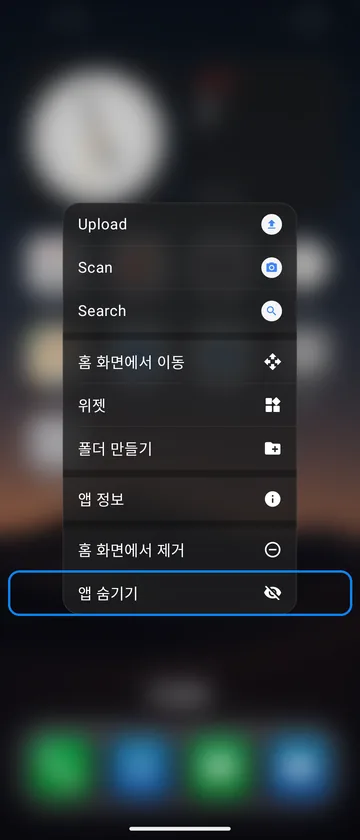
앱을 길게 누르면 나오는 메뉴The menu from touching and holding an app
폴더 안에서 앱 순서를 바꾸거나 바로 지울 수 있나요?Can I reorder or remove apps inside a folder?

폴더 안에서 앱을 길게 눌렀다 떼면 메뉴가 나와요. 앞으로·뒤로 옮기기, 다른 페이지나 독으로 이동, 폴더에서 제거, 앱 삭제를 할 수 있어요(1.0.9부터). 끌어서 폴더 밖으로 꺼낼 수도 있어요.Touch and hold an app in the folder, then release to open its menu: move earlier or later, move to a page or the dock, remove from the folder, or uninstall (from 1.0.9). You can also drag it out.

'모든 앱'의 분류를 바꾸거나 새로 만들 수 있나요?Can I change or create categories in All Apps?

1.0.10부터 돼요. 앱을 길게 눌러 분류 바꾸기를 고르면 다른 분류로 옮길 수 있고, 연필을 눌러 분류 이름을 바꾸거나 맨 아래에서 새 분류를 만들 수 있어요.Yes, from 1.0.10. Touch and hold an app and choose Change category to move it; tap the pencil to rename a category, or create a new one at the bottom.

페이지를 추가하거나 순서를 바꾸고 지우려면요?How do I add, reorder or delete pages?

편집 모드에서 아래쪽 페이지 점을 누르면 페이지 편집 화면이 열려요. 순서 바꾸기와 삭제(휴지통), 새 페이지 추가(1.0.9부터)를 할 수 있어요.In edit mode, tap the page dots at the bottom to open page editing. You can reorder pages, delete them with the trash button, and add a new page (from 1.0.9).

페이지 편집 (1.0.9)Page editing (1.0.9)

제스처 · 상태 표시Gestures & status

검색 버튼이나 위로 쓸어 검색, '모든 앱' 페이지를 끄고 싶어요.I want to hide the search button, or turn off swipe-up search or the All Apps page.

설정 › 제스처 및 검색에서 검색 버튼 표시(세로 독 오른쪽 아래 돋보기와 하단 독의 '검색' 알약), 위로 쓸어 검색 열기, 모든 앱 페이지를 각각 끌 수 있어요(검색 버튼은 1.0.11부터). 앱을 찾을 길이 하나는 남도록 셋 중 하나는 꺼지지 않아요. ('모든 앱'은 1.0.8까지 '앱 보관함'이라는 이름이었어요.)Under Settings › Gestures & Search you can turn off Show search button (the magnifier at the bottom right of the side dock and the Search pill above the bottom dock), Swipe up to search and All Apps page separately (the search button from 1.0.11). One of the three always stays on so you can still find apps. (All Apps was called 'App Library' up to 1.0.8.)

설정 › 제스처 및 검색Settings › Gestures & Search
위로 쓸었더니 검색 대신 첫 페이지로 가요.Swiping up takes me to the first page instead of opening search.

화면 맨 아래 가장자리에서 쓸면 안드로이드의 '홈으로' 제스처가 먼저 받아서, 런처는 홈 신호를 받고 첫 페이지로 돌아가요. 검색은 홈 화면 가운데쯤에서 위로 쓸어 주세요. 이건 시스템 동작이라 앱에서 바꿀 수 없어요.A swipe from the very bottom edge is taken by Android's 'go home' gesture first, so the launcher gets a home signal and returns to the first page. Swipe up from around the middle of the home screen to search. This is system behavior apps can't change.

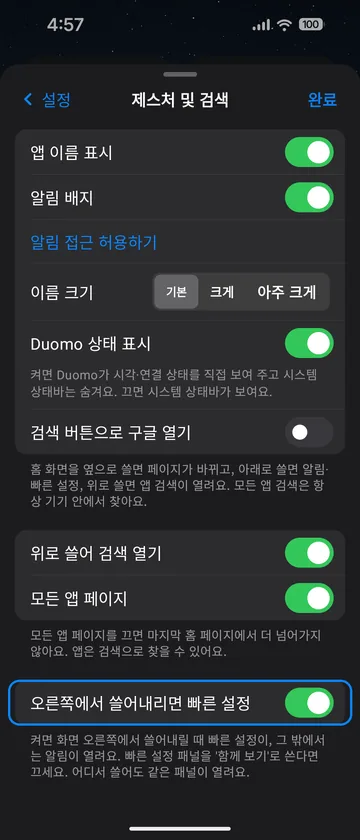
아래로 쓸어내릴 때 알림과 빠른 설정이 나뉘어 열려요.Swiping down opens notifications and Quick Settings separately.

설정 › 제스처 및 검색의 오른쪽에서 쓸어내리면 빠른 설정을 끄면 어디서 쓸어도 같은 패널이 열려요. 삼성 빠른 설정을 '함께 보기'로 쓴다면 끄는 걸 권해요.Turn off Swipe down on the right for Quick Settings under Settings › Gestures & Search and the same panel opens wherever you swipe. Recommended if your Samsung quick panel is set to 'Together'.

설정 › 제스처 및 검색Settings › Gestures & Search
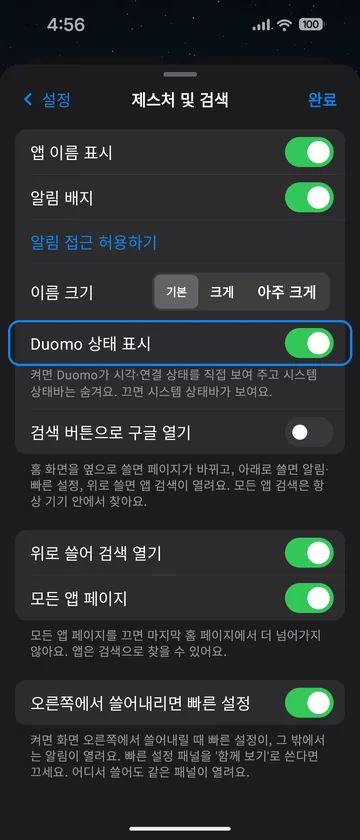
상태 표시를 껐는데도 시계와 와이파이가 계속 보여요.I turned off the status display but still see the clock and Wi-Fi.

하단 독 배치에서는 스위치가 적용되지 않는 문제가 있었어요. 1.0.9부터는 설정 › 제스처 및 검색의 'Duomo 상태 표시'를 끄면 시스템 상태바가 나와요.With the bottom dock the switch had no effect. From 1.0.9, turning off 'Duomo status display' under Settings › Gestures & Search shows the system status bar instead.

설정 › 제스처 및 검색 (1.0.9)Settings › Gestures & Search (1.0.9)
접은 화면에서도 배터리 숫자(%)를 보고 싶어요.I want to see the battery percentage on the cover screen.

1.0.11부터 설정 › 제스처 및 검색의 접은 화면에 배터리 숫자를 켜면 세로 독 상태 링 아래에 % 숫자가 나와요. 하단 독과 펼친 화면은 원래 숫자가 보여요.From 1.0.11, turn on Battery percentage on the cover screen under Settings › Gestures & Search and the percentage appears under the status ring of the side dock. The bottom dock and the unfolded screen already show it.

설정 › 제스처 및 검색Settings › Gestures & Search
5G 표시가 되나요?Does it show 5G?

1.0.8부터 와이파이가 아닐 때 5G·LTE가 표시돼요.From 1.0.8 it shows 5G/LTE when you're not on Wi-Fi.

최근 앱 제스처를 할 때 원래 홈 화면이 잠깐 보여요.The stock home screen flashes during the recents gesture.

삼성 시스템의 제약이라 런처 쪽에서 고칠 수 없어요. 양해 부탁드려요.That's a Samsung system limitation a launcher can't change. Sorry about that.

기타Other

앱을 열 때 아이콘에서 커지는 효과가 안 나와요.Apps don't zoom out of their icons when I open them.

삼성 One UI는 기본 런처가 아닌 런처에서 앱을 열 때 자체 전환 효과만 써요. 1.0.10에서 여러 방식을 실제 폴드에서 시험했지만 모두 같은 기본 효과로 바뀌어서, 앱에서 바꿀 수 없어요.Samsung One UI uses its own transition when apps are opened from a launcher other than the built-in one. We tried several approaches on a real Fold in 1.0.10 and all were replaced by the same default, so this can't be changed by an app.

시계·캘린더 아이콘이 움직이지 않아요.The clock and calendar icons don't move.

살아 있는 시계·캘린더 아이콘은 Aura 아이콘이 켜져 있을 때만 동작해요. 설정 › 배경화면 및 모양에서 켜 주세요.Live clock and calendar icons work only with Aura icons on. Turn them on under Settings › Wallpaper & Appearance.

설정 › 배경화면 및 모양Settings › Wallpaper & Appearance
화면 끝으로 끌면 페이지가 넘어가게 해 주세요.Please let me drag to the screen edge to change pages.

지금은 앱을 끄는 동안 위쪽에 나오는 페이지 숫자와 +에 놓는 방식으로 옮겨요. 화면 끝 넘기기는 당분간 넣지 않기로 했어요.For now, drop the app on the page numbers or + that appear at the top while dragging. Edge paging isn't planned for the time being.

홈을 두 번 탭해 화면을 끄려면요? 접근성 권한은 왜 필요한가요?How do I double-tap to turn the screen off, and why does it need accessibility?

설정 › 제스처 및 검색 › 홈 두 번 탭으로 화면 끄기를 켜면 안내가 뜨고, '설정 열기'를 누르면 안드로이드 접근성 설정으로 가요. 거기서 설치된 앱 › Duomo 제스처의 맨 위 토글을 켜 주세요(아래 '바로가기' 토글이 아니에요). 그다음 홈의 빈 곳(아이콘 없는 칸 포함)을 두 번 탭하면 꺼져요. 1.0.22부터.Turn on Settings › Gestures & search › Double-tap Home to turn off the screen, then tap 'Open settings' in the prompt. In Android's Accessibility settings, open Installed apps › Duomo gestures and switch on the top toggle (not the 'shortcut' toggle below). Then double-tap an empty spot on Home. Since 1.0.22.

안드로이드는 앱이 화면을 끄려면 접근성 서비스나 기기 관리자 권한 중 하나를 요구해요. 기기 관리자 방식은 삼성에서 잠근 뒤 지문 해제가 막혀서 접근성 방식을 골랐어요. 이 서비스는 화면 끄기와 알림창 열기에만 쓰고, 화면 내용을 읽거나 다른 앱을 지켜보지 않아요. 지문 해제에는 영향이 없어요.Android only lets an app turn the screen off through an accessibility service or device-admin rights. Device admin blocks fingerprint unlock on Samsung phones after locking, so Duomo uses the accessibility route. The service is used only to lock the screen and open the shade; it never reads screen content or watches other apps. Fingerprint unlock is unaffected.

홈 아래에 앱 한 줄을 더 둘 수 있나요?Can I add one more row of apps at the bottom of Home?

설정 › 홈 화면 레이아웃 › 베타 › 홈 아래 한 줄 더를 켜면 격자 아래 남는 공간에 앱 4칸 줄이 더 생겨요. 접은 화면·펼친 화면 모두, 공간이 한 줄 이상 남을 때만 보여요. 앱과 폴더만 둘 수 있고(위젯은 안 돼요), 편집 모드에서 끌어다 놓으면 돼요. 아직 베타라 이상한 점은 알려 주세요. 1.0.22부터.Turn on Settings › Home layout › Beta › Extra home row. When there is room below the grid, a row of 4 app slots appears on both the cover and the inner screen. Apps and folders only (no widgets); drag them in from edit mode. It's a beta, so tell me if anything looks off. Since 1.0.22.

잠금화면 빌더는 어디 있나요?Where is the lock screen builder?

설정 › 배경화면 및 모양 › 잠금화면 빌더. 사진을 여러 장 넣고 각각 시계 위치·글꼴을 정하고, 사람·사물 앞으로 시계가 살짝 가려지는 심도 효과를 켤 수 있어요. 잠금화면에 라이브 배경화면으로 적용돼요. Duomo Pro 기능이라 처음 7일은 무료로 쓰고, 그 뒤엔 평생권으로 계속 바꿀 수 있어요.Settings › Wallpaper & appearance › Lock screen builder. Add several photos, set the clock position and font for each, and turn on a depth effect that tucks the clock behind people and objects. It's applied as a live wallpaper on the lock screen. It's a Duomo Pro feature: free for your first 7 days, then keep changing it with the lifetime pass.

버그나 의견은 어디로 보내나요?Where do I send bugs or feedback?

앱의 설정 › 도움말 › 문제 신고 · 의견 보내기로 보내 주시면 기기 정보가 같이 와서 확인이 빨라요. 이 페이지에서도 보낼 수 있어요.Use Settings › Help › Report a bug · Feedback in the app; it includes your device details so I can check faster. You can also send it from this page.

설정 › 도움말Settings › Help